
Operating System
Cyber threats evolve daily, but you don’t have to feel powerless. These 10 actionable steps—tailored for Windows and Mac users—will fortify your digital defenses without requiring advanced technical skills. Whether you're protecting personal data or securing a home office, these strategies deliver immediate, practical results.
Enable multi-factor authentication everywhere
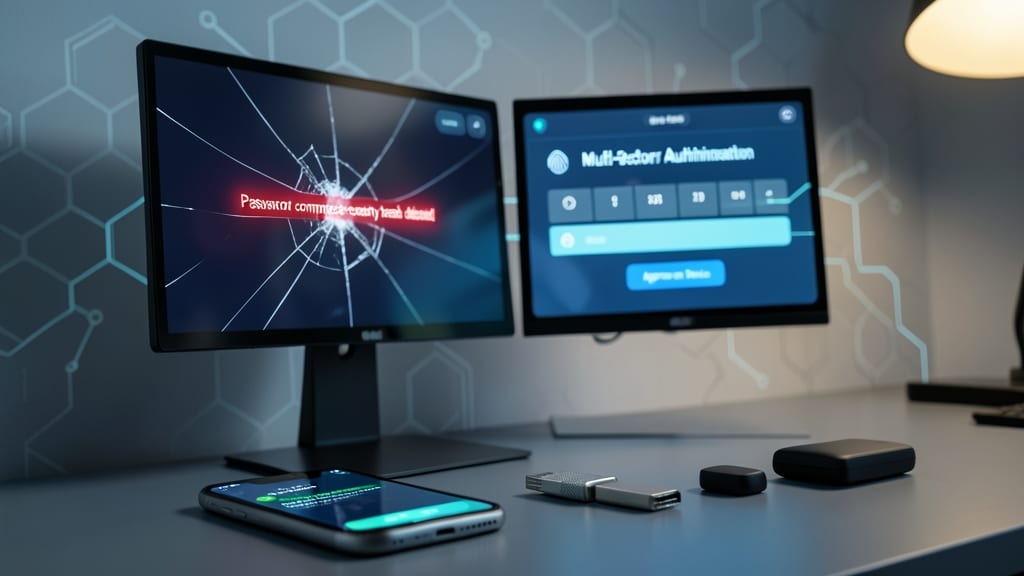
Even if hackers crack your password—which happens to millions of users yearly—they still can’t access your accounts without a second verification step. Multi-Factor Authentication (MFA) adds an extra layer of protection by requiring a second code, fingerprint, or device approval, making stolen credentials useless to attackers.
Start with your most critical accounts: email (like Gmail or Outlook), banking apps (Chase, Bank of America), and social media (Facebook, LinkedIn). Most services support SMS codes, authenticator apps (Google Authenticator, Authy), or hardware keys—the latter being the most secure. For example, enabling MFA on your email account alone blocks 99.9% of automated login attempts, since attackers can’t receive SMS codes or access your phone.
This is the #1 defense against credential theft—ideal for anyone with online banking, work emails, or sensitive accounts. Set it up in 5 minutes and sleep easier knowing your accounts are locked down. 💪
Use a password manager for all accounts
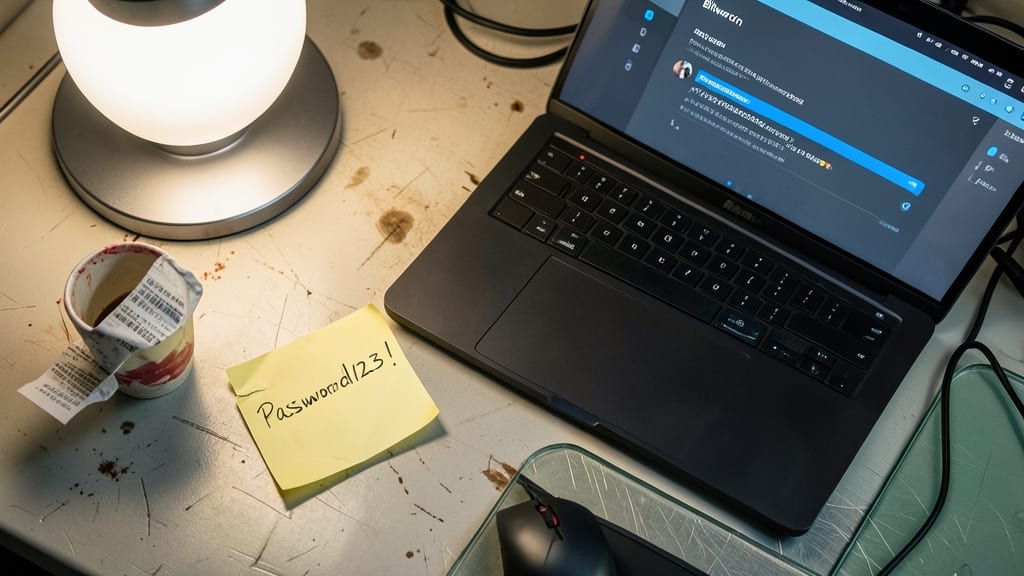
Tired of remembering yet another password? Weak or reused credentials are the #1 cause of data breaches—yet most people still rely on sticky notes or "Password123." A password manager like Bitwarden (free) or 1Password ($3/month) eliminates this risk by generating and storing 256-bit encrypted credentials, syncing instantly across your phone, laptop, and tablet.
These tools don’t just store passwords—they auto-fill logins, warn you about weak credentials, and even monitor the dark web for leaks. Bitwarden’s open-source design means no company can access your data, while 1Password’s Travel Mode hides sensitive info during border crossings. Both integrate with browsers, apps, and even biometric unlocking for extra security.
Perfect for busy professionals, families sharing accounts, or anyone juggling 50+ logins. No more password fatigue—just one master key to unlock them all. 💻
Update operating systems and software immediately
Hackers don’t wait for you to update your software—so why should you? Every unpatched system is an open door, and 90% of successful cyberattacks exploit known vulnerabilities that could’ve been fixed with a simple update. The average software vulnerability takes just 24 hours to be weaponized after discovery.
On Windows, enable automatic updates via Settings > Windows Update and prioritize critical security patches. For macOS, head to System Preferences > Software Update and keep App Store updates enabled. Don’t overlook third-party apps: Adobe Acrobat, Java, and browsers like Chrome or Firefox release patches weekly—set them to update automatically or check monthly. Pro tip: Use Windows Update Catalog or Apple’s Security Updates page to verify patches are installed.
This step is non-negotiable for anyone using a computer—whether you’re a casual user, remote worker, or gamer. A patched system is your first line of defense against malware, ransomware, and data theft. ⚡
Install a reputable antivirus with ransomware protection
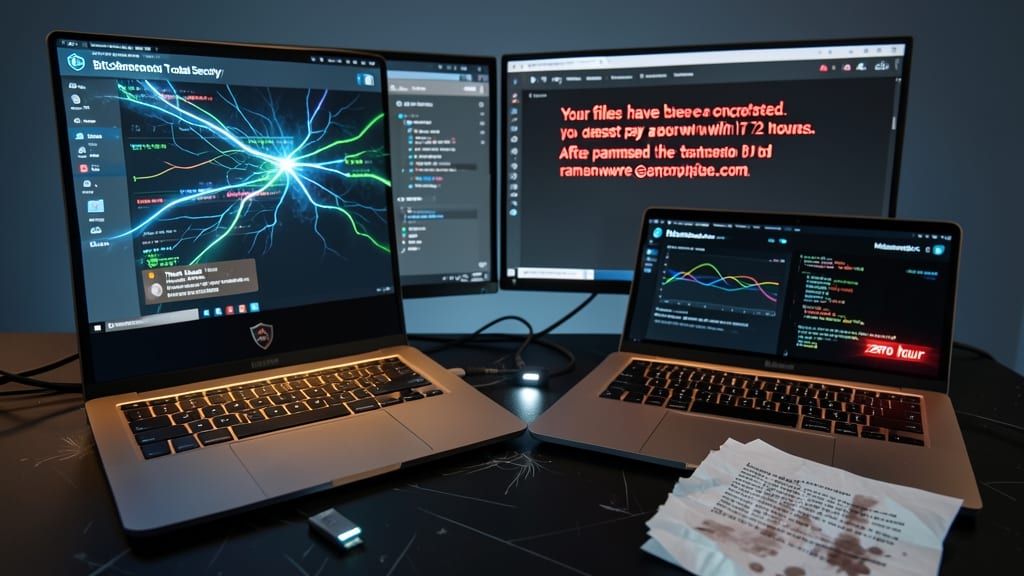
Ransomware attacks cripple thousands of businesses and individuals yearly—but you can stop them before they start. Unlike basic antivirus tools that only scan for known threats, Bitdefender Total Security and Malwarebytes Premium go further with AI-driven behavioral analysis and zero-day exploit detection, blocking attacks in real time.
Bitdefender’s multi-layer ransomware shield locks suspicious files before encryption begins, while Malwarebytes’ lightweight design runs silently in the background without slowing down your system. Both offer cross-platform protection for Windows, Mac, and even Android devices, with automatic updates to counter new threats. The free versions (like Malwarebytes’ on-demand scanner) are great for occasional checks, but paid plans ($40–$60/year) unlock full-time defense.
This is your first line of defense against file-encrypting malware—perfect for home users, remote workers, or anyone storing sensitive files. Don’t wait for an attack to act. ✨
Secure your Wi-fi network with strong encryption
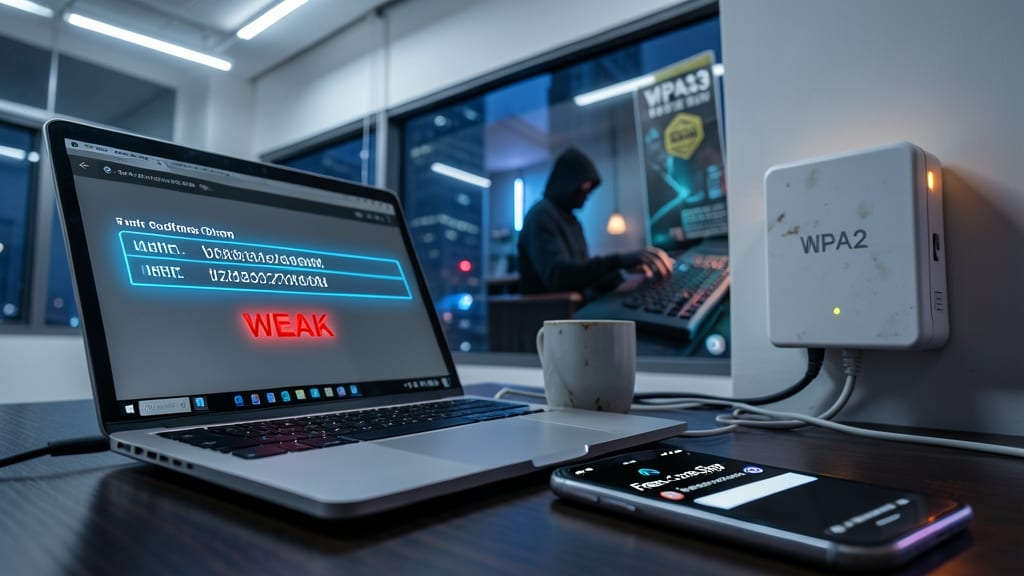
Your Wi-Fi network is the digital front door to your devices—yet most people leave it wide open with weak passwords and outdated settings. A single breach can expose bank logins, streaming accounts, and even smart home devices to hackers lurking on public networks.
Start by upgrading to WPA3 encryption (the latest standard) instead of WPA2, which has known vulnerabilities. Create a 20+ character password using a mix of letters, numbers, and symbols—tools like Bitwarden can generate one instantly. Most importantly, disable WPS (Wi-Fi Protected Setup), a feature with hardcoded flaws that lets attackers crack your password in minutes. These changes take 5 minutes but block 90% of common attacks.
This setup is ideal for anyone with smart devices, remote workers, or neighbors who might exploit a weak signal. Protecting your network is the first line of defense against cyber threats. 💻
Recognize and avoid phishing scams daily
Phishing attacks account for 90% of all cybersecurity breaches, yet most people still fall for them. The key to staying safe isn’t relying on tools—it’s training your eyes to spot subtle but dangerous red flags before they compromise your accounts.
Start by hovering over links in emails or messages to reveal their true destinations—mismatched URLs (like a PayPal login link pointing to paypa1-login.com) are a dead giveaway. Watch for urgent, threatening language ("Your account will be locked in 24 hours!") and generic greetings ("Dear User") from senders claiming to be banks or colleagues. Even encrypted emails can be spoofed—always verify requests via phone or in-person if something feels off.
This skill is especially critical for small business owners, freelancers, and remote workers, whose emails often mimic legitimate business communications. Practice with free phishing simulations from tools like KnowBe4 to sharpen your instincts. 💡
Limit browser extensions to essential tools
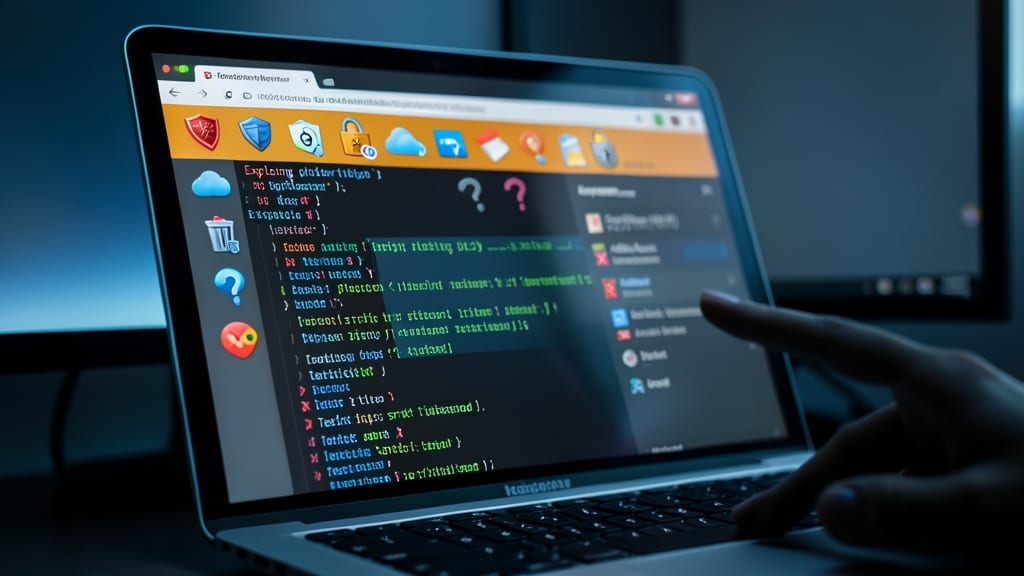
Your browser isn’t just a window to the web—it’s a potential gateway for hackers if packed with unnecessary extensions. Every plugin you install adds another layer of risk, from tracking scripts to outdated code that attackers exploit. A quick audit could reveal you’re running 10+ extensions when 3-5 would suffice.
Start by disabling anything unused for 30 days, then uninstall permanently. Stick to uBlock Origin (for ad-blocking) and Bitwarden’s browser extension (for password filling)—both are open-source and battle-tested. Avoid extensions promising "free VPNs" or "one-click shopping," as these often bundle malware. Chrome’s Extensions Manager (chrome://extensions) and Firefox’s Add-ons page make cleanup easy with one-click removal.
This step is perfect for casual users who want faster browsing and lower risk, or privacy-conscious professionals handling sensitive data. A lean browser loads pages 30-50% faster while cutting attack surfaces. ✨
Backup critical data automatically and offline
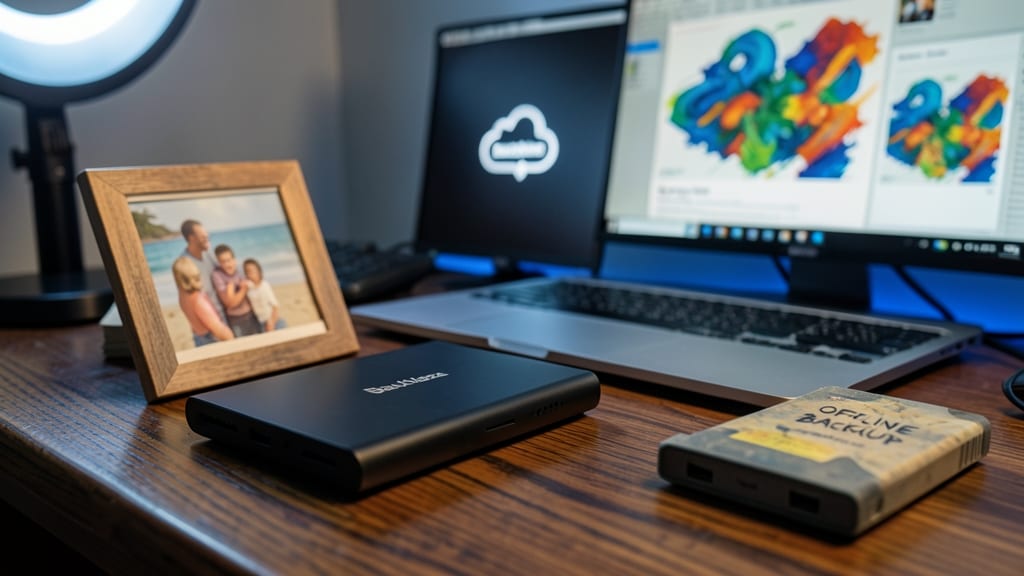
Your most cherished files—family photos, tax records, or creative projects—could vanish in seconds if ransomware strikes or a drive fails. The solution? Automated backups that combine cloud storage (like Backblaze) with offline drives for true redundancy.
Start with Backblaze ($6/month), which runs silently in the background, backing up all files to the cloud with unlimited storage. Pair it with a 1TB external drive (like WD My Passport) for offline copies—ransomware can’t encrypt what’s offline. Schedule weekly syncs to keep both copies current, and label drives clearly (e.g., "2024 Tax Docs").
This dual-layer approach is perfect for creatives, small business owners, or anyone with irreplaceable data. No tech skills needed—just set it and forget it. 💻
Disable unused services and ports on your device
Your device isn’t just running apps you see—dozens of background services (like remote assistance tools, printer spoolers, or even old app remnants) silently listen for connections, creating hidden entry points for hackers. Most users never notice these running, yet they’re prime targets for exploits like man-in-the-middle attacks or port scanning.
On Windows, head to Settings > Apps > Installed apps and disable anything unused (e.g., Xbox Game Bar, Cortana, or old Office versions). For macOS, open Activity Monitor > CPU tab, sort by “CPU” usage, and quit unnecessary processes like “Spotlight” or “Remote Login” if you don’t need them. Pro tip: Use Windows Task Manager or macOS’s lsof command to check open ports—tools like PortMaster (Windows) or Little Snitch (macOS) can block suspicious ones automatically.
This step is non-negotiable for remote workers, freelancers, or anyone sharing a network. Even casual users benefit—fewer services mean faster performance and a leaner attack surface. Start with disabling one unused service per week to avoid disrupting essential functions. 💪
Monitor financial and social media accounts weekly
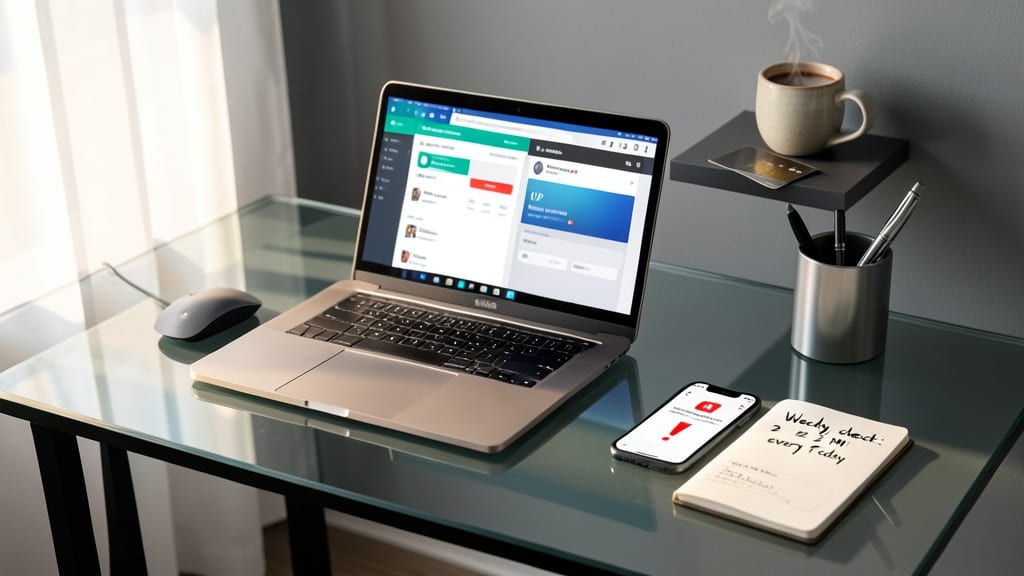
Fraudsters move fast—so should you. A simple weekly check of your financial accounts and social media logins can stop thousands in losses before they escalate. Unlike passive security tools, this proactive step catches breaches before they become disasters.
Start by setting up real-time transaction alerts in your bank’s app (most offer this for free). Then, scan your social media accounts for unfamiliar logins—especially on platforms like Facebook or LinkedIn where stolen credentials often go unnoticed. Use Have I Been Pwned (haveibeenpwned.com) to check if your email or passwords appear in known data breaches. These tools take just 5 minutes but could save you from identity theft.
This step is a must for anyone with online banking, social media profiles, or even a PayPal account. A quick weekly review turns passive security into an active shield. ✨