
Tip & Trick
Remote work offers flexibility but exposes data to new risks. These 10 security best practices help protect your devices, accounts, and sensitive information—whether you're working from a café, co-working space, or home office.
Use Multi-Factor Authentication Everywhere
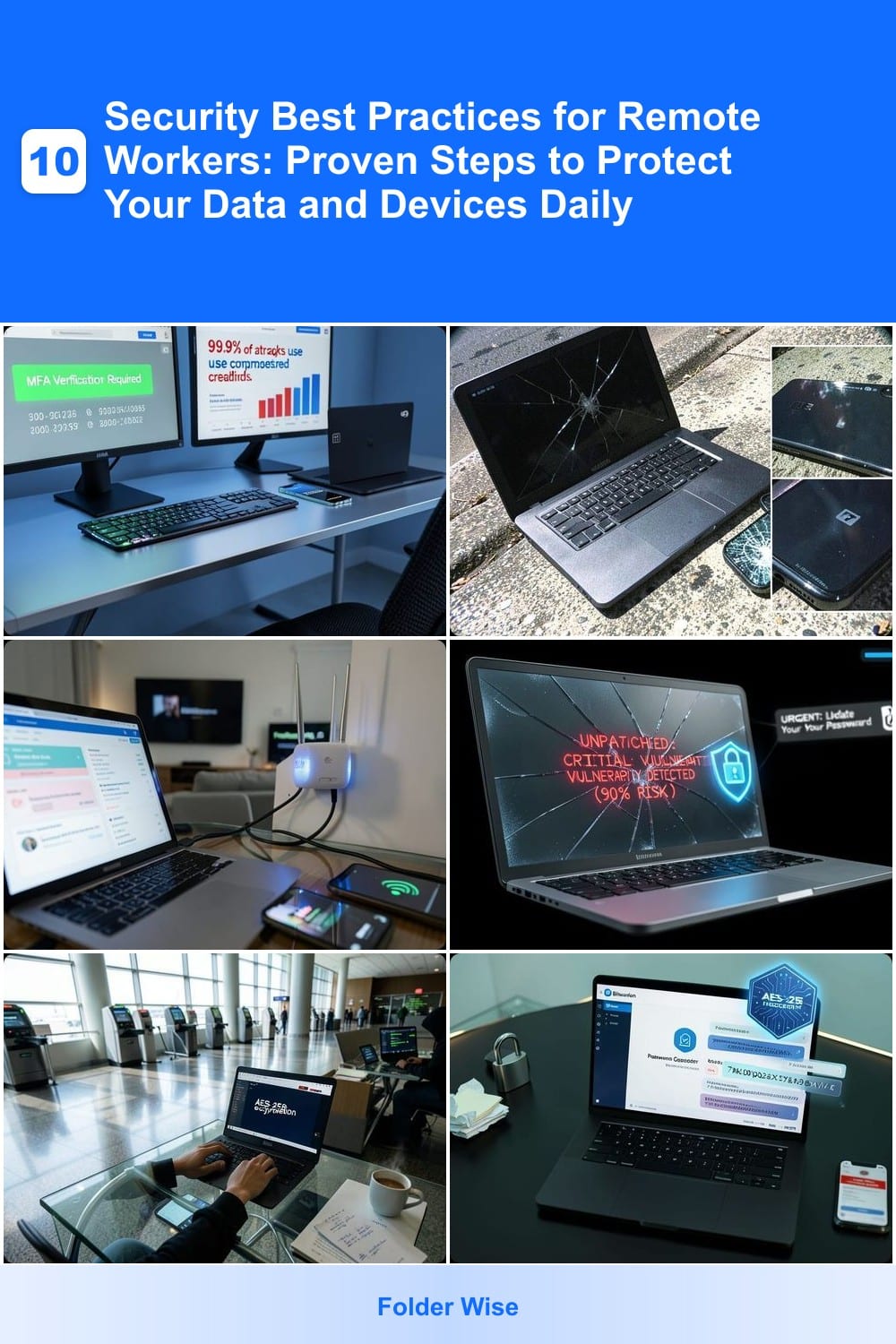
Even if your password is strong, a data breach could expose it—multi-factor authentication (MFA) adds an extra layer that thieves can’t bypass. With 99.9% of successful attacks involving compromised credentials, MFA is the simplest way to stop account takeovers before they happen.
Most platforms now support SMS codes, authenticator apps (like Google Authenticator or Authy), or biometric logins—all of which take seconds to set up. For critical accounts (email, banking, or work systems), enable MFA with push notifications for the highest security. Many services, including Microsoft, Google, and Apple, offer zero-configuration MFA that works across devices.
This is non-negotiable for anyone handling sensitive data—whether you’re freelancing, managing a team, or just protecting your personal accounts. Turn it on today and sleep easier knowing your accounts are locked down. ✨
Enable Full-Disk Encryption on All Devices
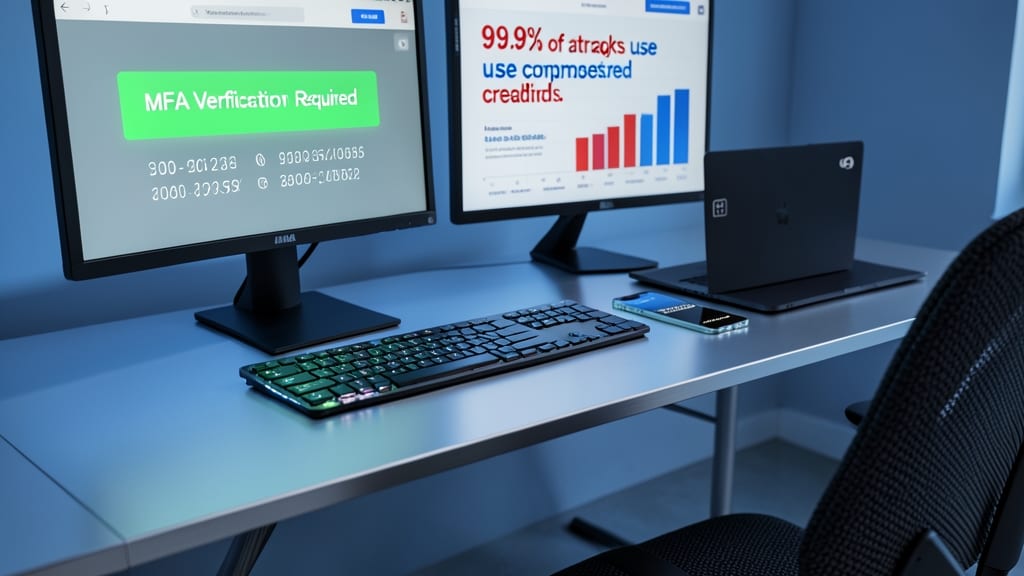
Losing a device isn’t just inconvenient—it’s a potential data disaster. Full-disk encryption scrambles all files on your laptop or phone so that even if it falls into the wrong hands, your sensitive work emails, client files, or personal data stay locked away.
Modern operating systems make this effortless: Windows BitLocker, macOS FileVault, and Android File Encryption all activate with a few clicks (or zero config on newer devices). The encryption runs in the background, with no performance hit—your device stays fast while your data stays secure. For extra peace of mind, enable secure boot to prevent tampering.
This is non-negotiable for anyone handling confidential client data or company secrets. Whether you’re working from a café or a co-working space, encryption ensures your data stays yours—no matter what happens to your device. 💻
Secure Your Home Wi-Fi Network
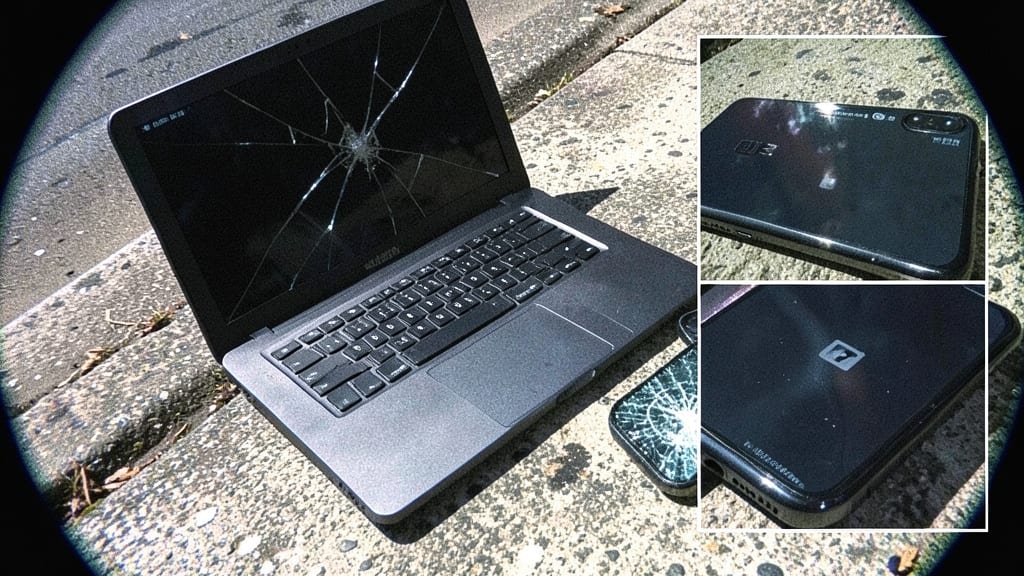
Your home Wi-Fi isn’t just for streaming movies—it’s the gateway to your corporate VPN, bank accounts, and sensitive work files. Without proper security, neighbors could be leeching off your bandwidth while exposing your traffic to eavesdroppers, especially when handling confidential transactions.
Start by changing the default SSID name and router admin password (yes, even if you’ve never touched it). Enable WPA3 encryption (or WPA2 if your router is outdated) and disable WPS—it’s a known security weak spot. For extra protection, set up a guest network for visitors and use MAC address filtering to restrict devices. Most modern routers also offer firewall rules to block suspicious traffic automatically.
This is a no-brainer for remote workers who connect to company resources daily. A few minutes of setup now can prevent data leaks or performance slowdowns from freeloaders. 💻
Install and Update Antivirus Software
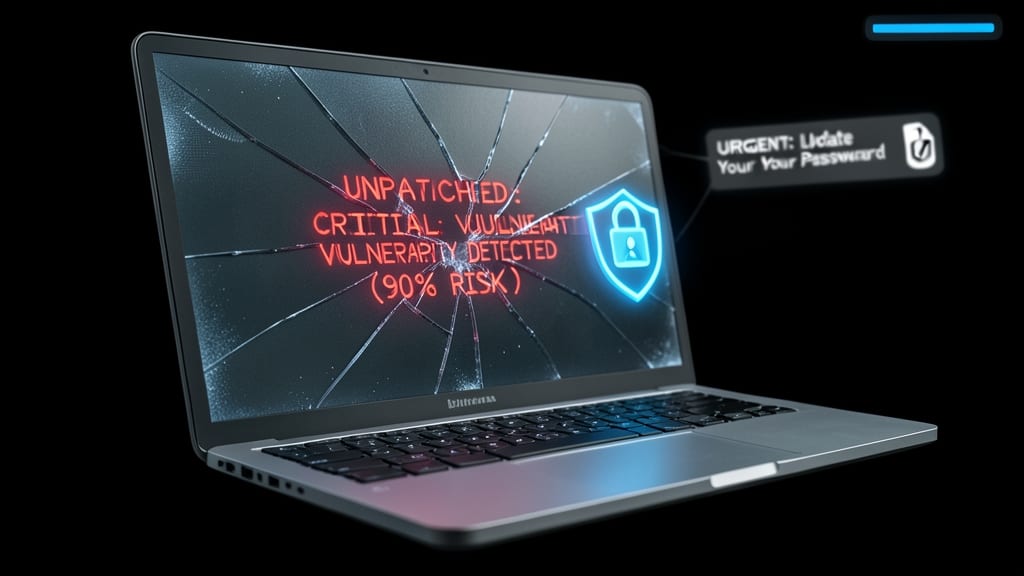
Cybercriminals exploit outdated software like a backdoor into your system—90% of successful ransomware attacks start with unpatched vulnerabilities. Installing real-time antivirus isn’t optional; it’s your first line of defense against malware that slips through phishing emails or unsecured downloads.
Leading solutions like Bitdefender GravityZone or Kaspersky Endpoint Security offer zero-day exploit protection, behavioral analysis, and automated patch management to close security gaps before attackers can exploit them. Even free options like Windows Defender (with cloud-delivered protection enabled) provide baseline malware blocking—but only if you enable automatic updates and scheduled scans.
Remote workers handling sensitive data (think HR, finance, or legal teams) should prioritize enterprise-grade antivirus with remote wipe capabilities and endpoint detection. For casual users, Bitdefender Free or Avast Premium strike a balance between security and performance. 💻
Use a Virtual Private Network (VPN)
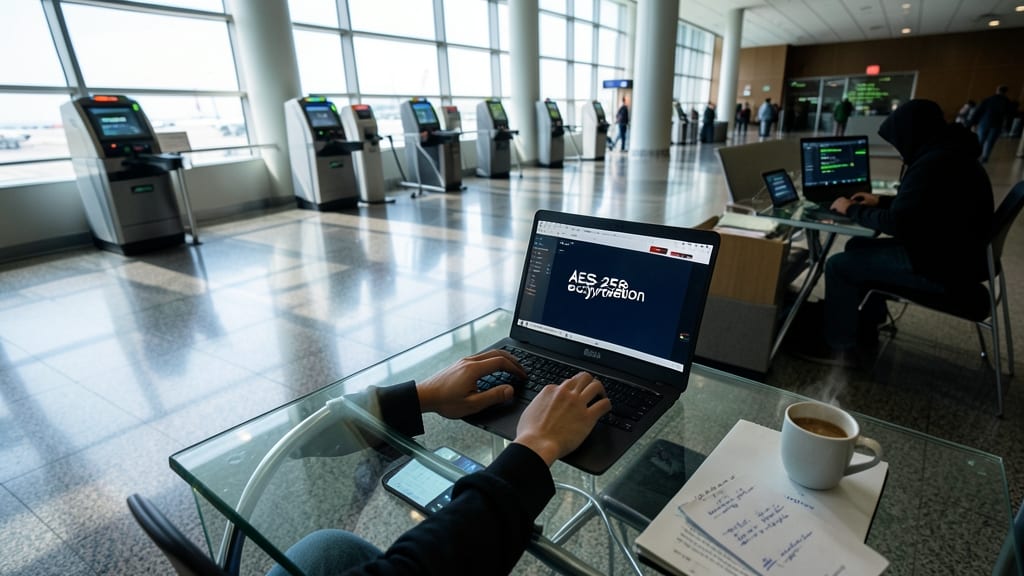
Public Wi-Fi at hotels or airports is convenient—but also a hacker’s playground. A VPN acts as your digital bodyguard, encrypting all traffic so prying eyes can’t intercept emails, logins, or company files while you’re connected.
Look for providers with military-grade encryption (AES-256), no-logs policies, and kill switches to cut connections if the VPN drops. Services like NordVPN or ExpressVPN offer user-friendly apps that auto-connect to the safest servers, with speeds fast enough for video calls or file transfers.
Remote workers, freelancers, and travelers handling sensitive data should prioritize VPNs—especially when accessing work resources outside secure networks. It’s the one tool that turns risky public Wi-Fi into a fortress. ⚡
Follow Secure Password Management
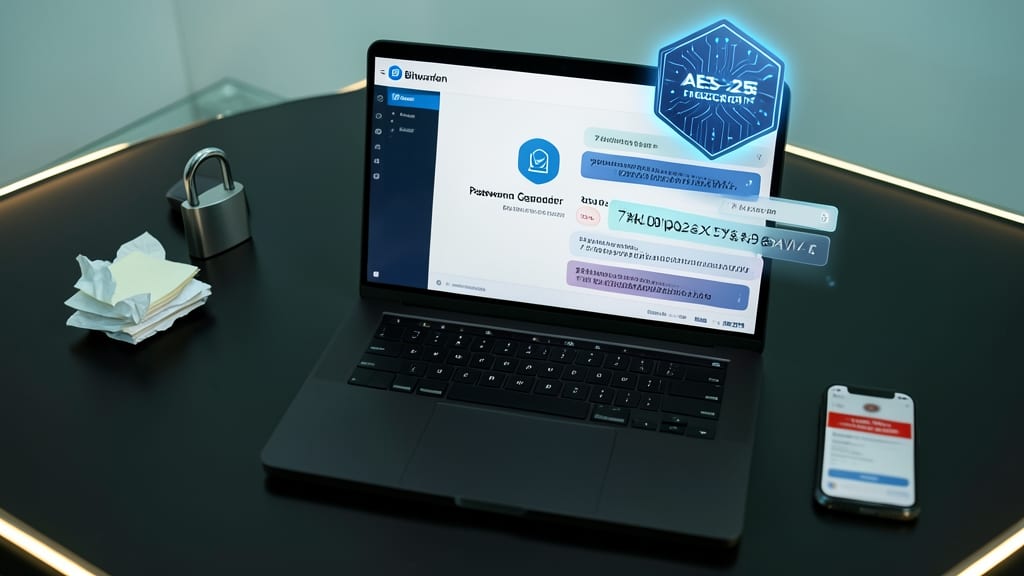
Tired of resetting passwords or falling for phishing scams? A password manager like Bitwarden or 1Password eliminates these headaches by generating and storing unique, 25-character credentials for every account—no memorization required.
These tools encrypt your vault with AES-256, the same standard used by banks, and sync across devices via end-to-end encryption. Features like biometric unlocks and emergency access shares add extra layers of security, while browser extensions auto-fill logins—saving you 10+ minutes daily.
Perfect for remote workers juggling personal and work accounts, password managers also block phishing attempts by verifying website URLs before auto-filling. 💻
Enable Remote Device Wipe Capabilities
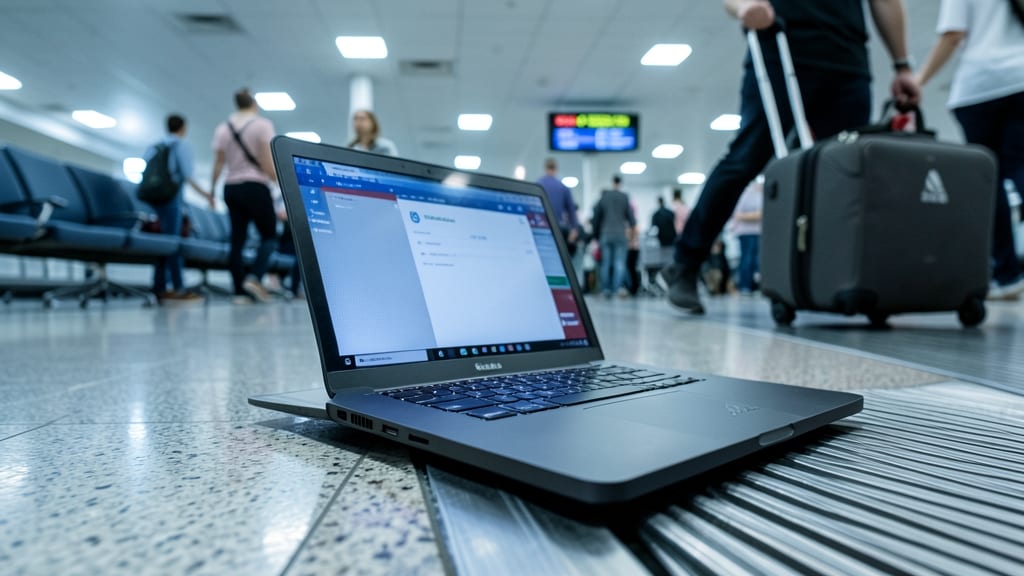
Imagine losing your work laptop at an airport—without remote wipe, that device could expose company data for weeks. Remote device wipe lets IT admins instantly erase all data on lost or stolen devices, turning a security nightmare into a quick fix.
Most modern MDM (Mobile Device Management) solutions—like Microsoft Intune, Jamf, or VMware Workspace ONE—offer this feature with zero-configuration enrollment for company-owned or BYOD devices. Admins can trigger a wipe remotely in minutes, ensuring sensitive files, emails, and apps vanish permanently. Even Apple’s Find My and Android Device Manager provide basic wipe capabilities for personal devices.
This is a game-changer for remote teams with BYOD policies, where employees use personal devices for work. It’s also ideal for freelancers or contractors who need to secure their own gear without heavy IT overhead. 💪
Secure Physical Workspaces Daily
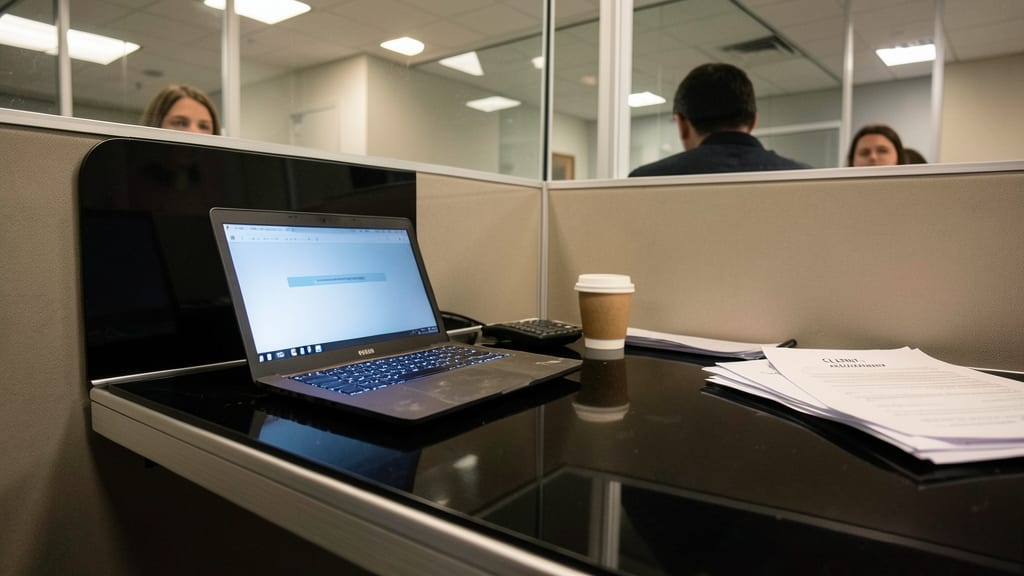
Ever walked away from your desk—only to realize a coworker or passerby could see your screen? Shoulder-surfing is a real threat, and physical workspace security often gets overlooked in favor of digital defenses.
Start with screen locks—most devices auto-lock after 5 minutes of inactivity, but set yours to 1 minute for maximum protection. Use privacy screen filters (like 3M’s) to block angles from prying eyes. Clear sensitive documents from your desk at the end of the day, and avoid writing down passwords or PINs where they’re visible. Even a shredder for old notes can prevent data leaks from ending up in the wrong hands.
This isn’t just for offices—remote workers in cafés or shared spaces should treat their workspace like a high-security zone. A few seconds of habit-building can stop breaches before they start. 💪
Verify Email and Links Before Clicking
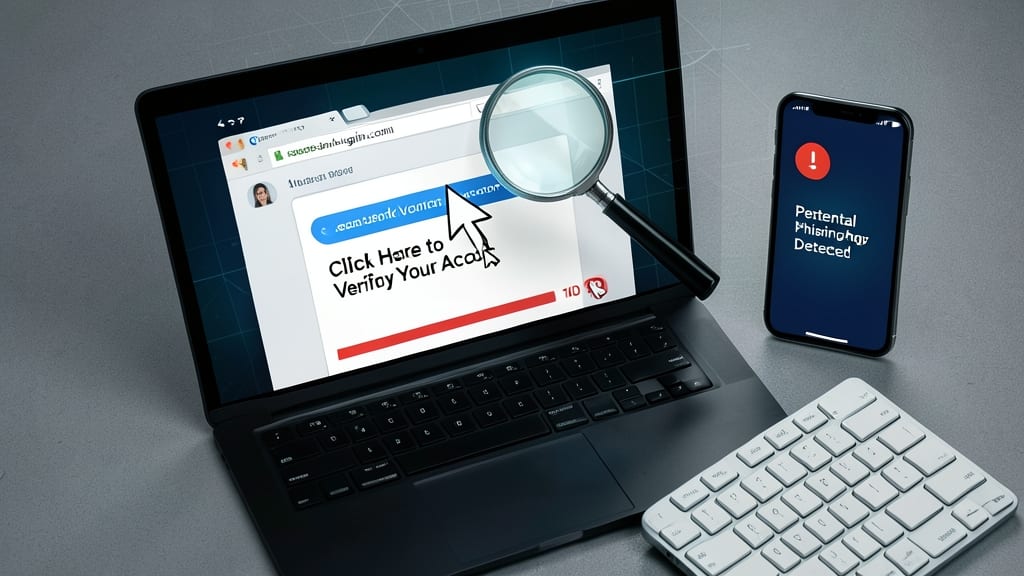
Phishing emails are the #1 way cybercriminals breach remote work accounts—yet most attacks start with a single click. The fix? A 10-second habit that stops 90% of these schemes before they begin: verifying every link and sender before engaging.
Start by hovering (not clicking) over links to reveal the true destination—fake "login required" emails often hide URLs like paypa1-security[.]com instead of paypal.com. For emails, check the sender’s full address (look for mismatched domains like support@amazon-security[.]net). Tools like Microsoft Defender for Office 365 or Google’s Safe Browsing add extra layers by flagging suspicious domains in real time.
This practice is non-negotiable for freelancers, finance teams, or anyone handling sensitive data. Train yourself to pause—even legitimate senders occasionally get spoofed. A quick check could save your company from a costly breach. 💡
Regularly Back Up Critical Data
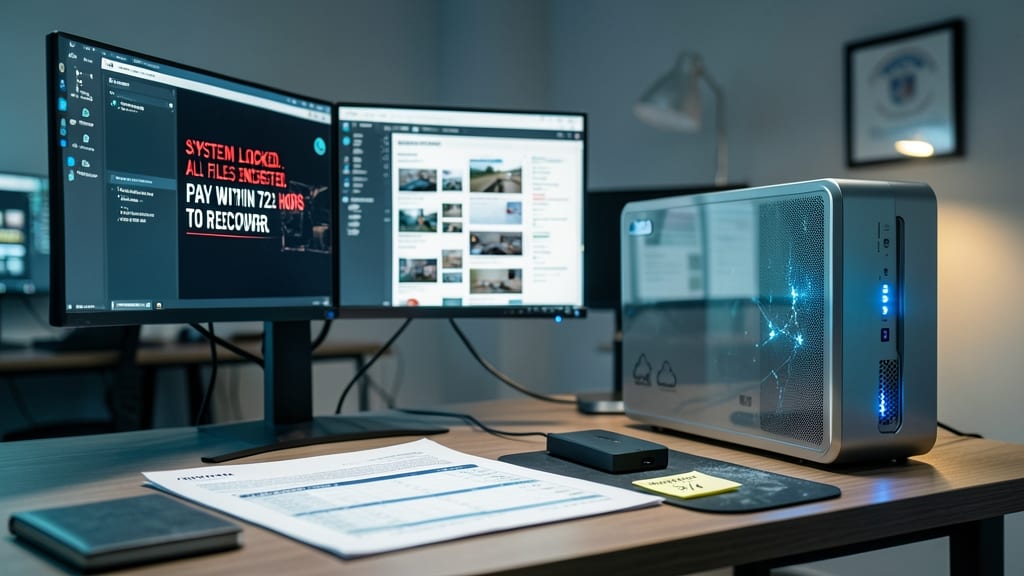
Ransomware attacks and hardware failures don’t announce themselves—they strike when you least expect it. That’s why automated cloud backups are your silent guardian, ensuring critical files like client contracts, project files, and financial records are recoverable in minutes, not hours.
Services like Backblaze or Acronis offer continuous, encrypted backups with no storage limits, while Microsoft OneDrive integrates seamlessly with Office 365 for real-time syncing. Set it and forget it—most tools run in the background, requiring zero manual effort. Even better, versioning lets you restore files to a pre-attack state if malware strikes.
This isn’t just for IT admins—freelancers, small business owners, and remote teams rely on backups to avoid costly downtime. A 30-second setup could save weeks of work. ✨