
Coding
Struggling with messy text data in Excel? These 10 essential text functions will transform raw data into clean, usable information with minimal effort. From extracting emails to formatting names, these tools are game-changers for analysts and office professionals alike.
Concatenate Function for Combining Text Fields
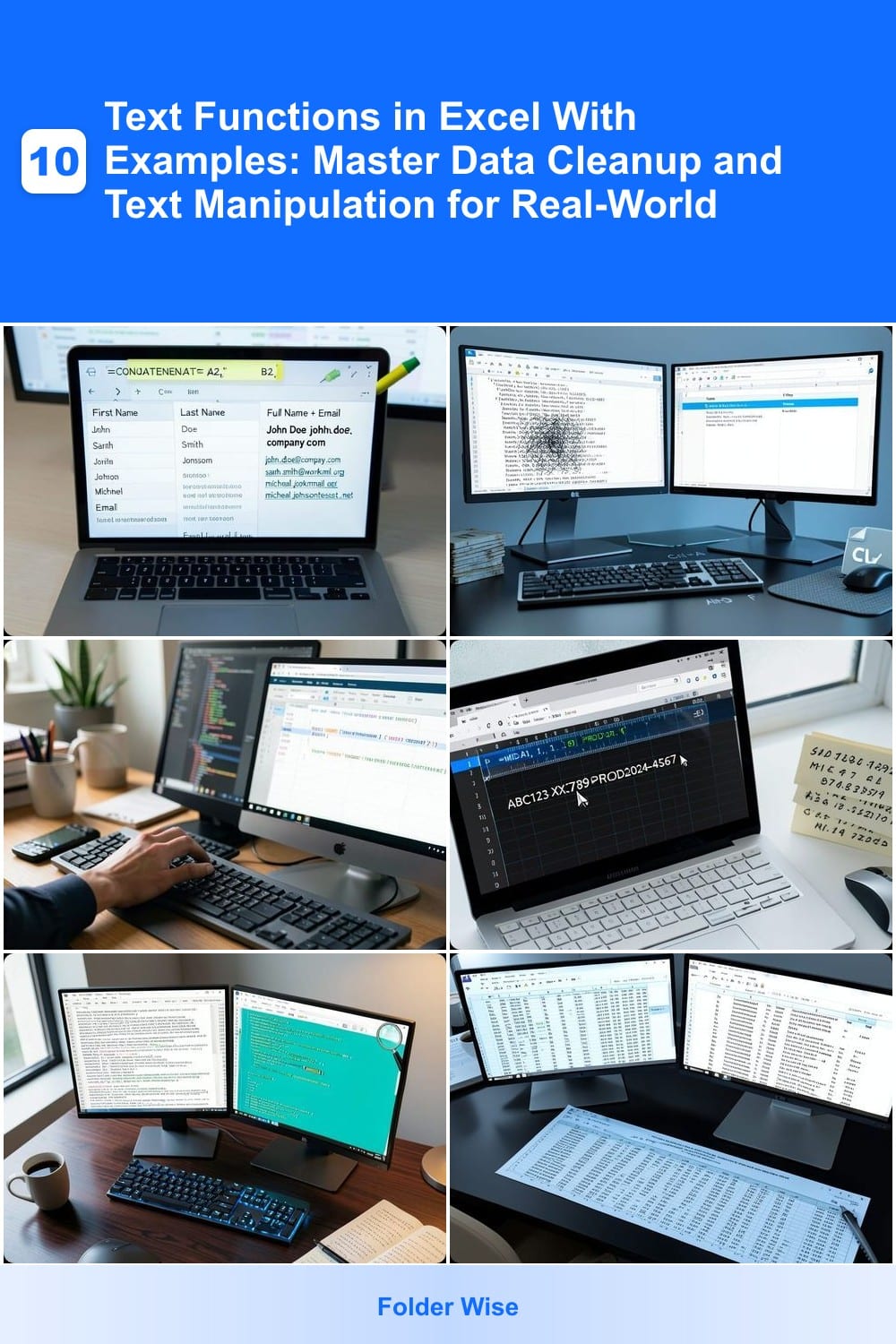
Tired of juggling first names, last names, and emails across separate columns? The CONCATENATE function lets you merge them into a single cell with just one formula—no copy-pasting required.
Type =CONCATENATE(A2, " ", B2) to combine text from cells A2 and B2 with a space in between. Need more control? Add a third argument for email addresses or commas. For modern Excel versions, TEXTJOIN is even better—it handles multiple delimiters and skips empty cells automatically.
Perfect for HR teams building contact lists, marketers compiling customer data, or anyone who needs clean, formatted addresses. Start with this function, and you’ll save hours on manual data cleanup. ⚡
Text to Columns for Splitting Data

When your data arrives as a single messy string—like a CSV dump or legacy system export—Text to Columns is your Swiss Army knife for splitting it into clean, organized columns. Unlike formulas, this tool handles everything from comma-separated values (CSV) to fixed-width text with just a few clicks, saving hours of manual copying.
Start by selecting your data, then navigate to Data > Text to Columns. Choose Delimited for commas/tabs or Fixed Width for aligned columns, then preview the split before finalizing. It even detects semicolons, spaces, or other separators automatically. Perfect for turning raw imports into structured datasets without writing a single formula.
This is the go-to tool for data analysts, accountants, or anyone merging external datasets into Excel. Try it next time you import a file—your future self will thank you for the instant cleanup. ⚡
LEFT and RIGHT Functions for Extracting Partial Text

Need to pull out just the first five characters of a product code or the last four digits of a ZIP code? The LEFT and RIGHT functions in Excel are your precision tools for extracting specific text segments without manual copying.
Use LEFT(text, numchars) to grab characters from the start (e.g., LEFT("ABC123", 3) returns "ABC") or RIGHT(text, numchars) for the end (e.g., RIGHT("ABC123", 2) returns "23"). These functions shine when working with fixed-length data like serial numbers, domain names, or validation codes where position matters.
Perfect for data analysts cleaning imports or anyone needing to standardize text—like extracting ".com" from email addresses. ⚡
MID Function for Extracting Middle Characters

Need to pull out a serial number, product code, or variable-length segment from messy text strings? The MID function is your secret weapon—unlike LEFT/RIGHT, it lets you extract any middle characters based on dynamic starting positions and lengths.
Simply use =MID(text, startnum, numchars) to grab exactly what you need. For example, extract a 10-digit serial from a product description like "Model XYZ-1234567890" by specifying =MID(A1, 9, 10). It’s perfect for inventory lists, transaction IDs, or data validation where positions aren’t fixed. Combine it with FIND for even more flexibility!
This is the go-to tool for data analysts, inventory managers, or anyone wrestling with inconsistent text formats. ⚡
FIND and SEARCH Functions for Text Positioning

Tired of manually scanning cells for specific text patterns? The FIND and SEARCH functions let you dynamically locate text without hardcoding positions—ideal for validating emails, extracting domains, or spotting inconsistencies in datasets.
FIND returns the position of a substring (case-sensitive) while SEARCH ignores case, making them perfect for tasks like extracting everything after "@" in emails (=RIGHT(A1, LEN(A1)-FIND("@", A1))). Both functions support wildcards (* and ?) for pattern matching, and their results can feed into other text functions like MID or LEFT for advanced extraction.
Data analysts and quality assurance teams will love these for automating text validation—no more eyeballing spreadsheets! ✨
SUBSTITUTE Function for Text Replacement

Tired of manually fixing typos, abbreviations, or inconsistent formatting across hundreds of rows? The SUBSTITUTE function is your secret weapon for zero-config data cleanup—replace "Inc." with "Incorporated," fix "Dr." to "Doctor," or standardize units like "ft" to "feet" in seconds.
With just four arguments—text to search, replacement value, instance number (or "all" for global changes), and the cell reference—you can transform messy datasets into polished reports. For example, =SUBSTITUTE(A1, "Inc", "Incorporated") instantly updates company names, while =SUBSTITUTE(A2, "Dr.", "Doctor ", 1) corrects titles without affecting other text. Works seamlessly with Excel 2010 and later, including Office 365.
Perfect for finance teams standardizing currency symbols, HR departments correcting job titles, or marketing analysts cleaning email lists. Try it once, and you’ll wonder how you ever lived without it. ✨
TRIM Function for Removing Extra Spaces

When importing data from external sources like CSV files or databases, those extra spaces—leading, trailing, or even multiple spaces between words—can turn your perfectly organized spreadsheet into a chaotic mess. The TRIM function is your secret weapon for instantly cleaning up these inconsistencies, ensuring your data aligns perfectly and sorts correctly.
With just one simple formula—=TRIM(A1)—you can remove all unnecessary spaces from a cell's contents. It handles leading spaces, trailing spaces, and even extra spaces between words, making it ideal for fixing misaligned columns or corrupted imports. Unlike other functions, TRIM works silently in the background, so you don’t have to manually adjust each cell. It’s also case-sensitive (though not in the way you’d expect—it only affects spaces, not text).
This function is a must-have for anyone dealing with data imports, especially if you frequently work with spreadsheets from clients, legacy systems, or third-party tools. Try it on your next messy dataset—you’ll wonder how you ever lived without it. ✨
UPPER, LOWER, and PROPER Functions for Text Formatting
Tired of inconsistent text cases ruining your polished reports? The UPPER, LOWER, and PROPER functions instantly standardize text formatting with just a few clicks. Whether you're dealing with mixed-case product names or messy data imports, these functions ensure every entry follows your preferred style—no manual edits required.
Use UPPER() to convert all text to uppercase (e.g., "ACME CORPORATION"), LOWER() for lowercase (e.g., "acme corporation"), and PROPER() to capitalize the first letter of each word (e.g., "Acme Corporation"). They work seamlessly with entire columns, making them ideal for cleaning datasets before analysis or sharing. Drag the formula down, and watch inconsistent formatting disappear instantly.
Perfect for professionals who need uniform text formatting in invoices, client lists, or inventory reports. These functions save hours of manual work while maintaining a polished, professional appearance. ✨
LEN Function for Character Counting

Need to enforce strict data rules in your spreadsheets? The LEN function lets you count characters in a cell with precision, making it perfect for validating entries like passwords, product codes, or survey responses.
Simply type =LEN(cell_reference) to get the exact character count. Combine it with IF statements to flag incomplete entries (e.g., =IF(LEN(A1)<10,"Too Short","Valid")), or use it with conditional formatting to highlight cells that meet length requirements. This function is a lifesaver for database managers or anyone enforcing data quality standards.
Ideal for data validation specialists, customer support teams, or developers testing API responses, LEN ensures your text fields meet specific criteria before processing. ⚡
CLEAN Function for Removing Non-Printable Characters
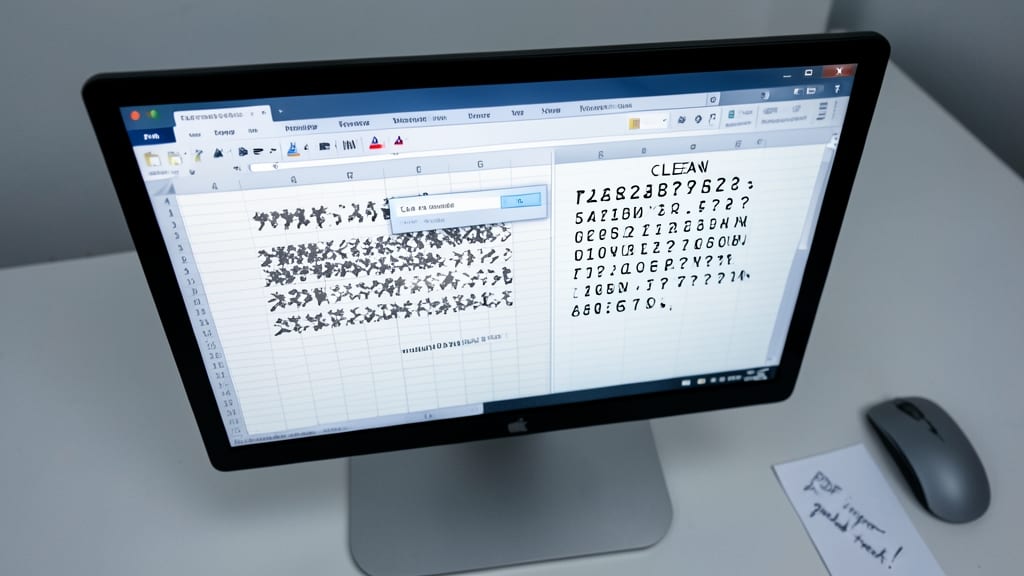
When Excel formulas suddenly break or text displays as garbled symbols, the CLEAN function is your silent hero. Unlike other text tools, it targets invisible characters—like non-breaking spaces, line feeds, or zero-width markers—that sneak into data during imports from PDFs, web scrapes, or legacy systems.
Simply wrap your text in =CLEAN(text), and it strips out all non-printable ASCII characters (codes 0-31). For example, =CLEAN(A1) turns a corrupted cell like "Product123␀" into clean "Product123" instantly. It’s the final step after using TRIM or SUBSTITUTE, ensuring your data is truly pristine before analysis.
This is the unsung tool for data recovery specialists, import managers, or anyone troubleshooting formula errors caused by hidden characters. Try it when your spreadsheet starts behaving mysteriously—it often fixes issues you can’t even see. ✨