
PowerPoint
High school students can turn ordinary assignments into extraordinary learning experiences using Microsoft Office tools. These 10 stand-out projects showcase creativity, technical skills, and real-world applications that will impress any teacher—while building a portfolio for college applications.
Interactive Classroom Timeline of Historical Events
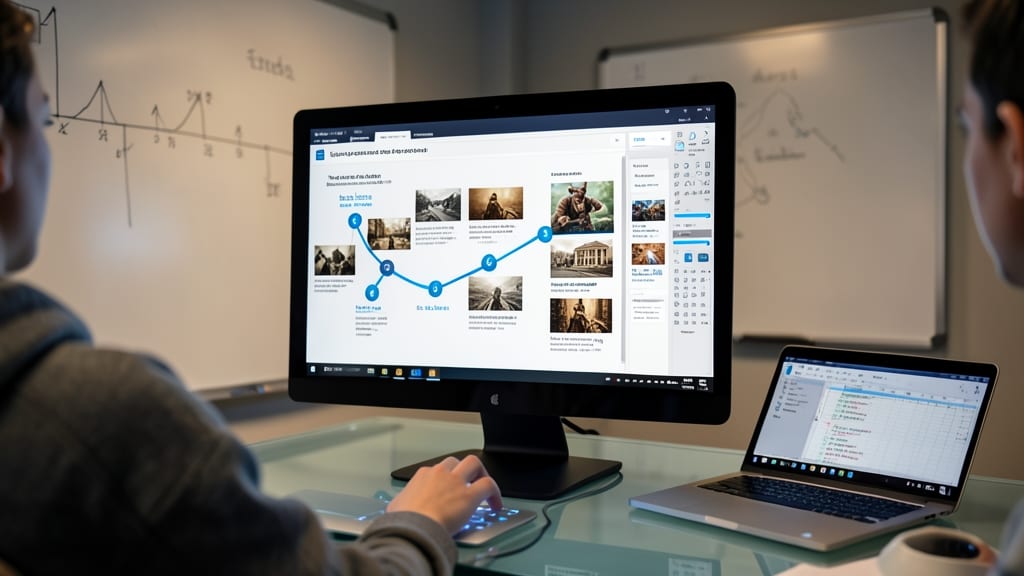
Ditch the static poster board—your history project just got an upgrade. An Interactive Classroom Timeline merges PowerPoint’s animation tools with Excel’s data-driven flexibility to create a dynamic, clickable timeline where students can explore events, zoom in on details, and even adjust timelines themselves. No coding required!
Start by building your timeline in Excel with key dates in one column and descriptions in another. Use data validation dropdowns to let viewers filter by era (e.g., "Revolutionary War" or "Roaring Twenties"). Then, embed this Excel table into PowerPoint using the "Object" tool. Add animated transitions (like fade-ins) to highlight major events, and use PowerPoint’s Morph tool to show cause-and-effect connections between eras. For extra flair, overlay historical photos from free sources like Wikimedia Commons.
Perfect for AP History, World Cultures, or debate classes, this project turns passive learning into an active experience. Teachers will love how it blends research, tech skills, and presentation prowess—all while making history feel alive. 💡
Digital Yearbook with Word and Publisher

Skip the glue and scissors—your school yearbook can now be a digital masterpiece with Microsoft Word and Publisher. This project lets you design a professional-looking yearbook with interactive elements, photo galleries, and custom quotes—all without needing design experience.
Start by drafting content in Word (student bios, captions, and quotes), then import it into Publisher for layout. Use Publisher’s pre-built templates for magazine-style spreads, and add hyperlinks to connect photos or quotes for an interactive experience. Export as a PDF for easy sharing with teachers or classmates.
Perfect for English, media, or journalism classes, this project teaches collaboration, design basics, and digital publishing—skills that’ll impress teachers and look great on college applications. ✨
Budget Planning Spreadsheet for Future Careers
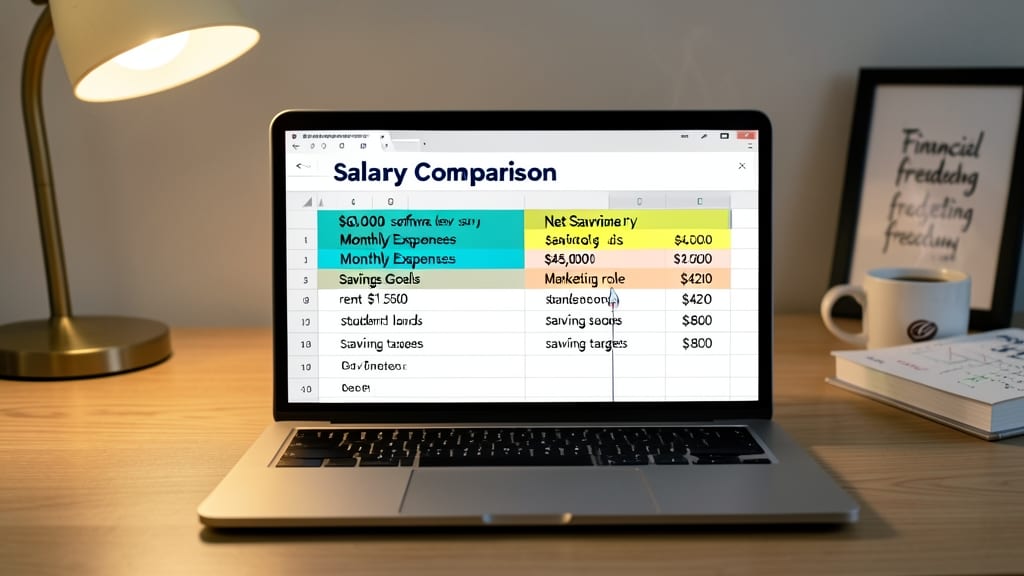
Ever wondered how your dream job salary stacks up against real-world expenses? A Budget Planning Spreadsheet in Excel lets you explore financial scenarios—like comparing a $60,000 software dev salary to a $45,000 marketing role—while tracking rent, student loans, and savings goals. It’s the perfect way to turn abstract economics concepts into tangible, interactive lessons.
Start with a multi-tab workbook: one sheet for monthly expenses (with dropdown menus for categories like "Entertainment" or "Transportation"), another for hypothetical salaries (adjustable sliders for easy comparisons), and a third for savings projections using Excel’s PMT function to model loan payments. Add conditional formatting to highlight overspending in red and savings milestones in green—visual feedback makes complex data intuitive.
This project shines in business or economics classes, especially when paired with discussions about career paths. Teachers love how it blends math, real-world skills, and critical thinking—all while students create something they’ll actually use later. 💻
Science Lab Report with Embedded Data Visuals
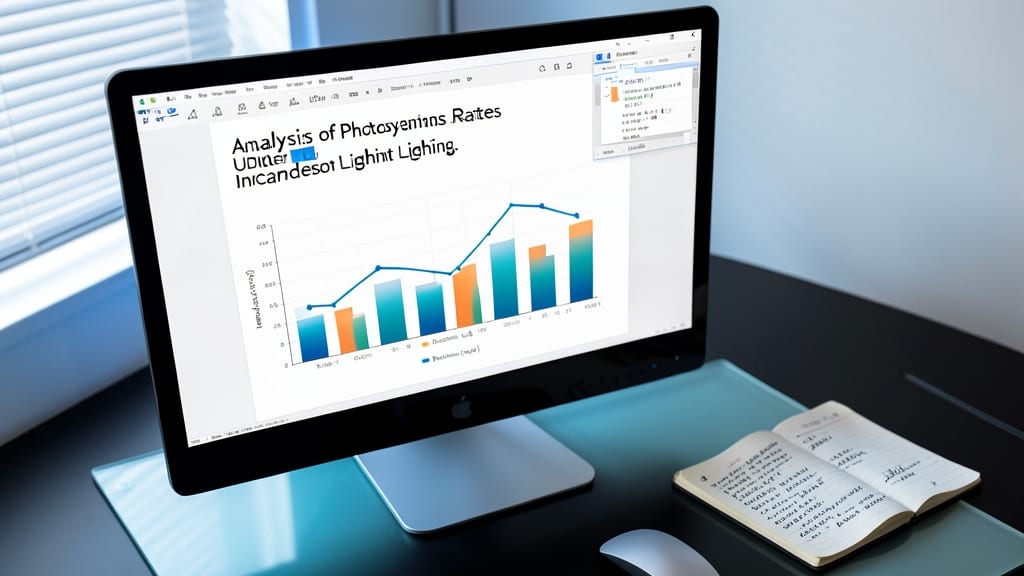
Turn your next science fair project into a polished, professional report with embedded data visuals—no design degree required. By linking Excel charts directly into Word documents, you can present lab results with dynamic graphs that update automatically when your data changes, saving hours of manual formatting.
Start by organizing your raw data in Excel (use tables for clean formatting) and create visuals like line graphs for trends or pie charts for proportions. Then, insert them into Word using the "Object" tool to keep everything editable. Add annotations in Word to explain key findings, and use APA formatting for citations—your teacher will love the seamless blend of text and data. ⚡
This project is perfect for chemistry, biology, or physics students who want to showcase their analytical skills. Whether you're tracking reaction rates or analyzing survey results, this method makes complex data clear and engaging—just like a real scientist’s report. 💡
Virtual Museum Tour in PowerPoint 3D
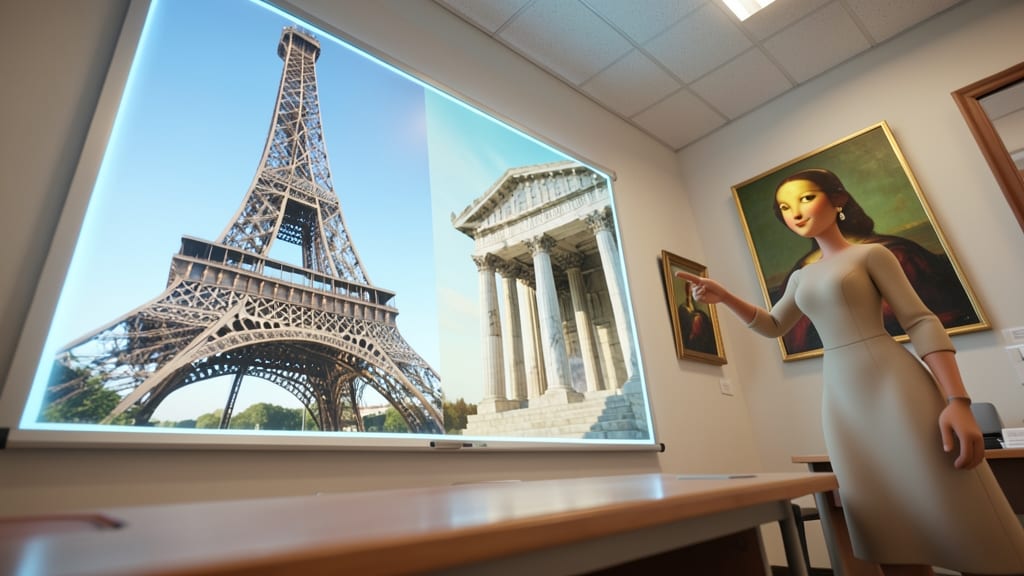
Turn your classroom into a global art gallery with PowerPoint’s 3D tools, letting students explore famous landmarks or masterpieces as if they were there. This project transforms static slides into an interactive virtual museum tour—perfect for art history or geography presentations that go beyond textbooks.
Start by inserting 3D models (like the Louvre’s Venus de Milo or the Eiffel Tower) from PowerPoint’s built-in shapes or free online sources. Add 360-degree rotations and zoom effects to let viewers "walk around" each piece. For extra engagement, include audio guides (recorded or embedded) to share fun facts—no coding required!
Art lovers and geography buffs will thrive with this project, which blends creativity with tech skills teachers adore. Plus, it’s a great way to practice research and presentation skills—all while impressing with zero boring bullet points. ✨
Personalized College Application Portfolio
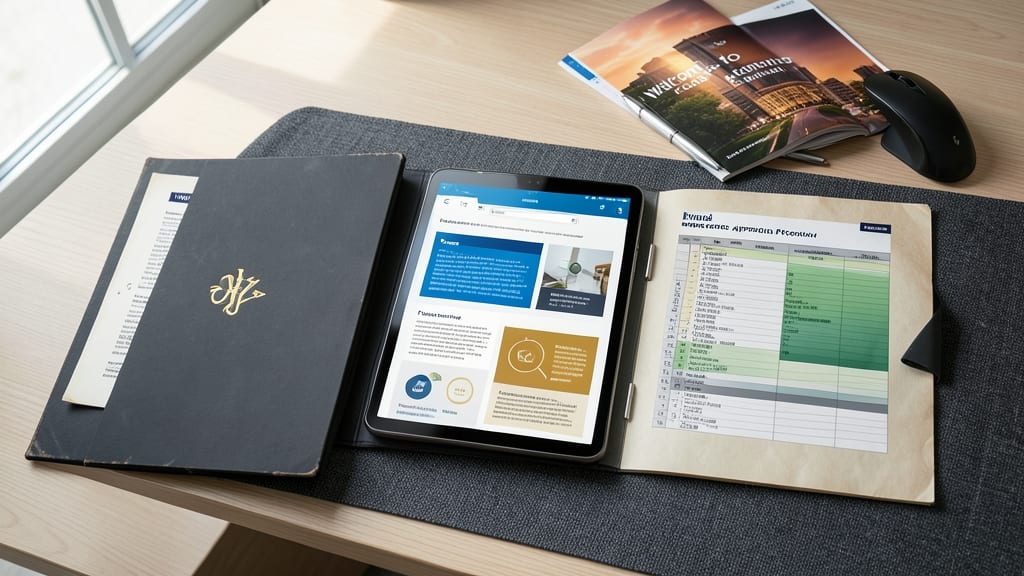
Standing out in college applications isn’t just about grades—it’s about telling your story in a way admissions officers can’t ignore. This Personalized College Application Portfolio merges Word, PowerPoint, and Excel to create a dynamic showcase of your achievements, from academic transcripts to extracurricular highlights.
Start with a Word document for your personal statement and resume, then use PowerPoint to design a visually engaging presentation of your accomplishments—think before/after graphs of test score improvements or timelines of leadership roles. Add an Excel spreadsheet to track awards, volunteer hours, and GPA trends with color-coded charts for instant impact. Save everything in a OneDrive folder for easy sharing with college counselors.
Perfect for juniors and seniors, this portfolio isn’t just a school project—it’s a battle-tested tool for college applications. ✨
Environmental Impact Infographic in PowerPoint
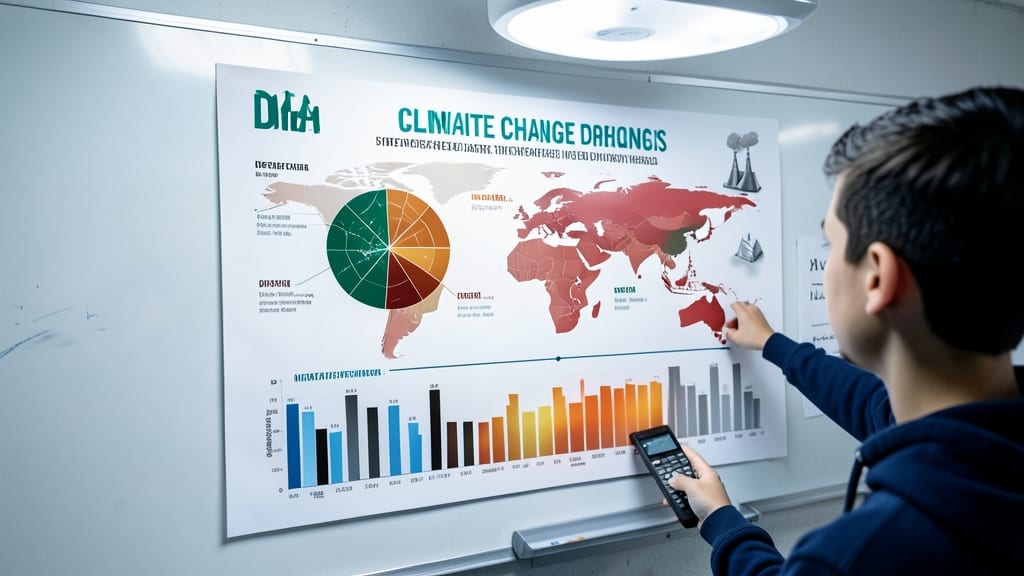
Turn climate change data into a visually compelling presentation that grabs attention—and maybe even sparks classroom debates. PowerPoint’s built-in SmartArt graphics and shapes tools let you transform dry statistics into eye-catching infographics that highlight deforestation rates, carbon footprints, or renewable energy growth.
Start with pre-built templates like the "Process" or "Pyramid" layouts to organize data hierarchically, then layer in icons from Flaticon (free) or PowerPoint’s own Mornington icon set. Use trend lines and pie charts to show progress (or lack thereof) in sustainability efforts, and add color gradients (dark blues for water, greens for forests) to reinforce themes without overwhelming your audience.
Perfect for environmental science classes or debate team projects where visuals make complex arguments stick. Teachers will notice the effort—and your ability to communicate data creatively. ✨
Automated Resume and Cover Letter in Word
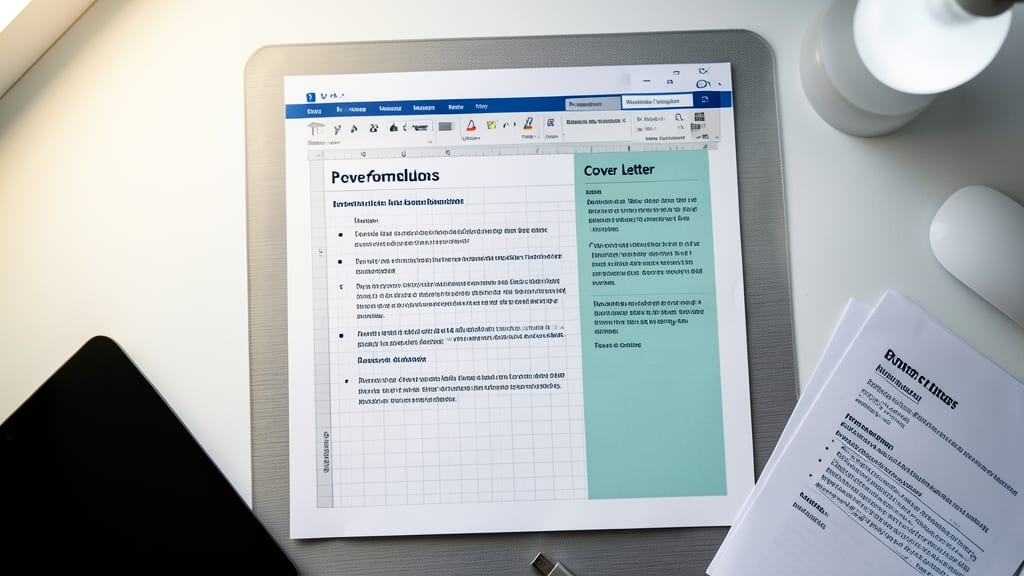
Looking to build real-world job skills while still in high school? A reusable Word template for resumes and cover letters is the perfect way to stand out in career tech or business classes—and impress future employers.
Start by creating a master document with styles for headings, bullet points, and contact info that auto-adjusts when you update details. Use Word’s Mail Merge to generate multiple cover letters with just a few clicks, saving hours of manual work. Add a skills section that lets you drag-and-drop achievements, and save it as a template for future applications.
This project is ideal for students in business, career prep, or tech classes who want to build a professional portfolio. It’s also a great way to practice attention to detail—a skill every employer values. ✨
Interactive Math Problem Solver in Excel
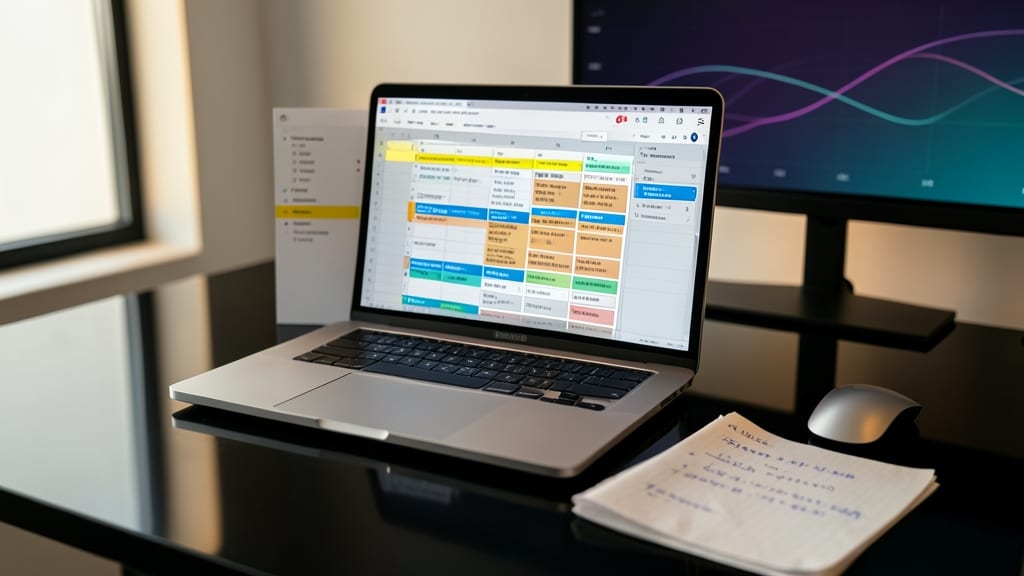
Turn static math homework into an interactive showcase with an Excel-based problem solver that lets users input variables and see solutions instantly. This project goes beyond calculations—it demonstrates your ability to combine data validation, formulas, and dynamic menus to create a functional tool that teachers will notice.
Start by building a drop-down menu for problem types (e.g., quadratic equations, systems of equations) and use Excel’s IF and SOLVER functions to generate step-by-step solutions. Add a "Show Work" button that reveals the formula logic, and include a results graph to visualize solutions. The best part? You can expand it to include unit tests or even export solutions to Word for reports.
This project is ideal for math students aiming for STEM fields—it’s a tangible way to highlight technical skills while mastering Excel’s advanced features. Plus, it’s reusable for future classes or even personal finance tracking! ✨
Digital Storybook with Audio Narration

Bring your creative writing to life with a digital storybook that combines PowerPoint’s animation tools and Word’s audio features for an immersive experience. Instead of just submitting a written assignment, you can turn your short story into a multimedia presentation with embedded narration—perfect for language arts projects or showcasing original work.
Start by typing your story in PowerPoint or Word, then record your narration using the built-in audio tools (PowerPoint’s "Record Audio" or Word’s "Insert Audio" feature). Add visuals like illustrations, transitions, and background music to enhance the storytelling. For extra flair, use text animations to highlight key lines or slide transitions to mimic page turns in a physical book.
This project is ideal for students in creative writing, English, or media classes who want to stand out with a polished, interactive presentation. It’s also a great way to practice public speaking skills by recording your own voiceover. ✨