Software
Microsoft Edge is faster, more secure, and packed with hidden features—but most users only scratch the surface. These seven expert tips will transform your browsing experience, balancing speed with privacy while unlocking productivity boosters you didn’t know existed.
Enable Vertical Tabs for Multitasking Efficiency
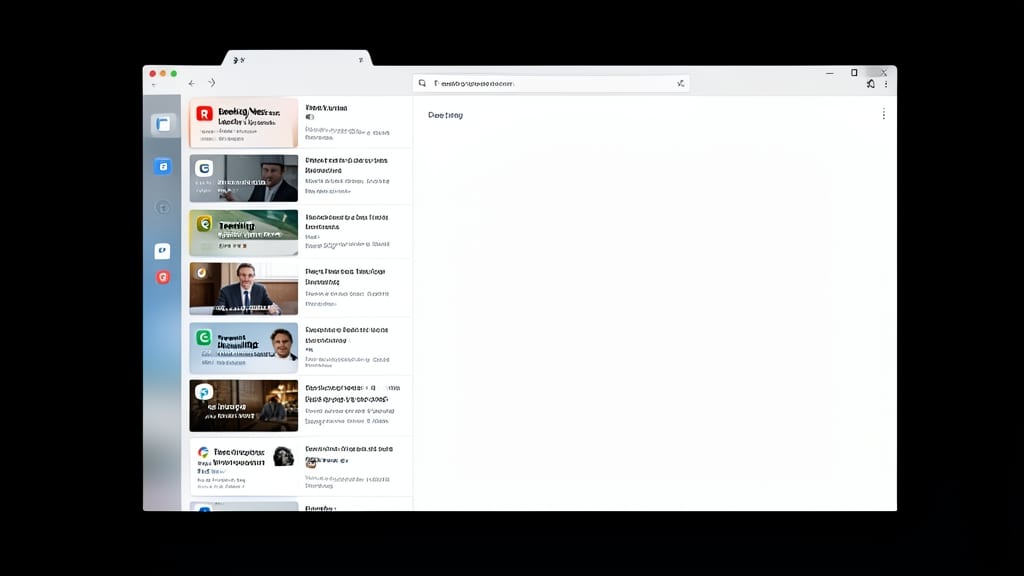
Stuck scrolling through a horizontal tab graveyard every time you switch tasks? Microsoft Edge’s vertical tabs feature flips the script—stacking your open sites vertically in a sleek sidebar. This compact layout lets you see all your tabs at once without sacrificing screen real estate, making it ideal for developers debugging across multiple repos or researchers cross-referencing sources.
To enable it, right-click any tab, select "Move tab to new vertical tab group," and watch your workflow transform. The sidebar stays always accessible via a single click, and you can even pin frequently used sites for instant access. Unlike traditional tab bars, this layout keeps your focus on content while reducing the mental overhead of tab-hopping.
Perfect for power users managing complex projects—whether you’re comparing code snippets, tracking research, or juggling client tools. Your screen just got a productivity upgrade. ⚡
Use Immersive Reader for Focused Content Consumption
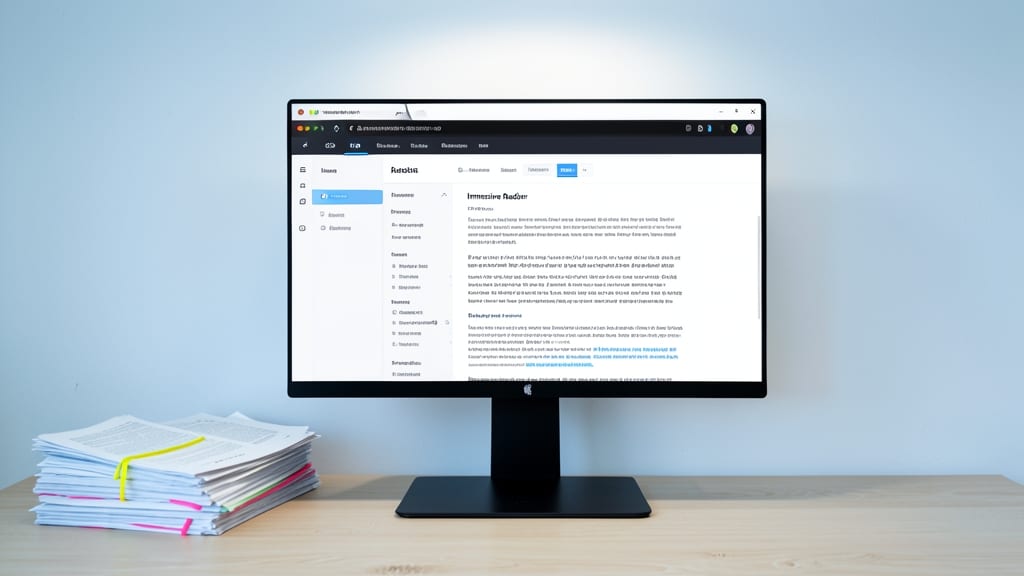
Struggling to focus on dense articles, research papers, or long-form writing? Microsoft Edge’s Immersive Reader is your secret weapon—transforming cluttered web pages into a distraction-free, dyslexia-friendly reading experience with just one click. This built-in tool strips away ads, sidebars, and navigation menus, leaving only the text you need in a clean, high-contrast layout.
With adjustable font sizes, line spacing controls, and color themes (including sepia for reduced eye strain), Immersive Reader adapts to your needs. It even reads text aloud with natural pacing, perfect for auditory learners. The tool also supports text-to-speech in over 80 languages, making it ideal for language learners or accessibility needs. Best of all, it syncs with your Microsoft account, so your preferences follow you across devices.
Students cramming for exams, writers battling writer’s block, or anyone drowning in digital noise will find this feature a game-changer. Give it a try—your focus (and eyes) will thank you. ✨
Block Trackers with Enhanced Microsoft Defender Integration
Worried about hidden trackers silently collecting your data while browsing? Microsoft Edge’s Enhanced Microsoft Defender Integration silently blocks them—no extensions required. This built-in feature scans over 50,000+ known tracking domains in real time, including hidden scripts and third-party cookies, without slowing down your browsing.
The best part? It’s zero-config setup—just toggle it on in Edge’s Privacy Settings under "Trackers and permissions." Unlike standalone privacy tools, this integration works seamlessly with Microsoft Defender’s existing threat intelligence, ensuring you’re protected against evolving tracking tactics. No pop-ups, no performance hits, and no need to juggle extra software.
Perfect for privacy-conscious professionals, journalists, or anyone who values discretion while browsing. Your data stays yours—without sacrificing speed or convenience. ✨
Enable Hardware Acceleration for Smoother Performance
Stuttering videos, choppy animations, and buffering—these are common frustrations when your browser struggles to keep up. Hardware acceleration in Microsoft Edge offloads heavy tasks like video decoding and rendering to your GPU, transforming playback into a seamless experience, especially for 4K content or complex web apps.
To enable it, navigate to Settings > System > Performance and toggle "Use hardware acceleration when available." This setting works best with modern GPUs (NVIDIA, AMD, or Intel integrated graphics) and can improve scrolling performance in sites like Google Maps or YouTube by up to 30%. It’s particularly valuable for content creators editing media or streaming high-quality video without buffering interruptions.
If you frequently work with video editing software or stream games, this tweak is a must-try—just ensure your drivers are up to date for the best results. ⚡
Customize Start Page with Collections for Quick Access
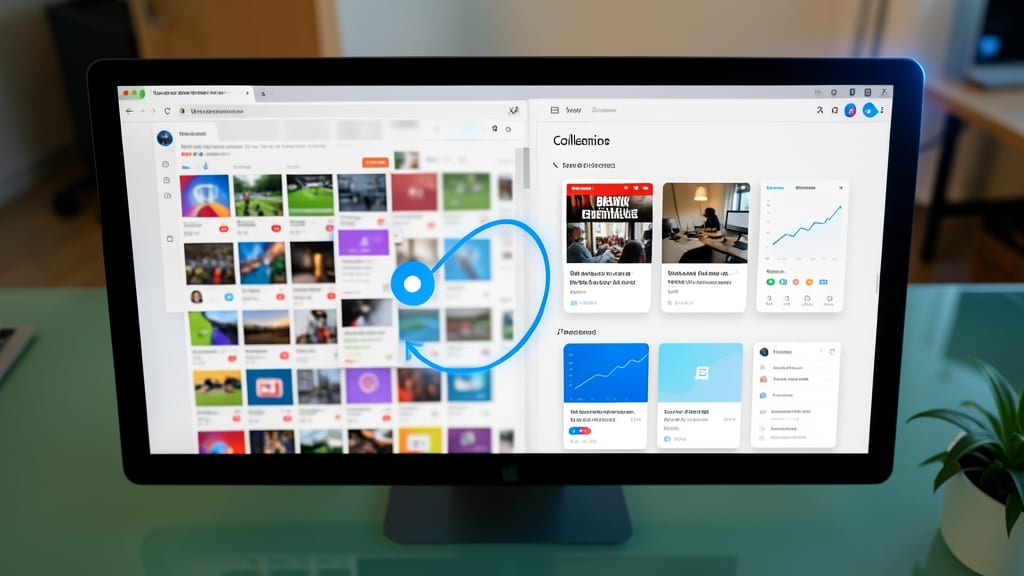
Tired of scrolling through endless tabs to find that one site you visit daily? Microsoft Edge’s Collections feature turns your most-used websites into a searchable, visual dashboard that loads in seconds—no more tab clutter or wasted time hunting for links.
Create custom collections by dragging sites into color-coded folders (e.g., "Work," "Research," or "Shopping") and add notes or images for context. The instant search bar lets you jump to specific sites without opening a single tab, while pinned collections appear right on your start page. Best of all, it syncs across devices, so your workflow stays consistent whether you’re at your desk or on the go.
This is the ultimate tool for project managers, researchers, or anyone juggling multiple roles—think of it as a digital command center for your browsing. ✨
Clear Browsing Data with One-Click Privacy Reset
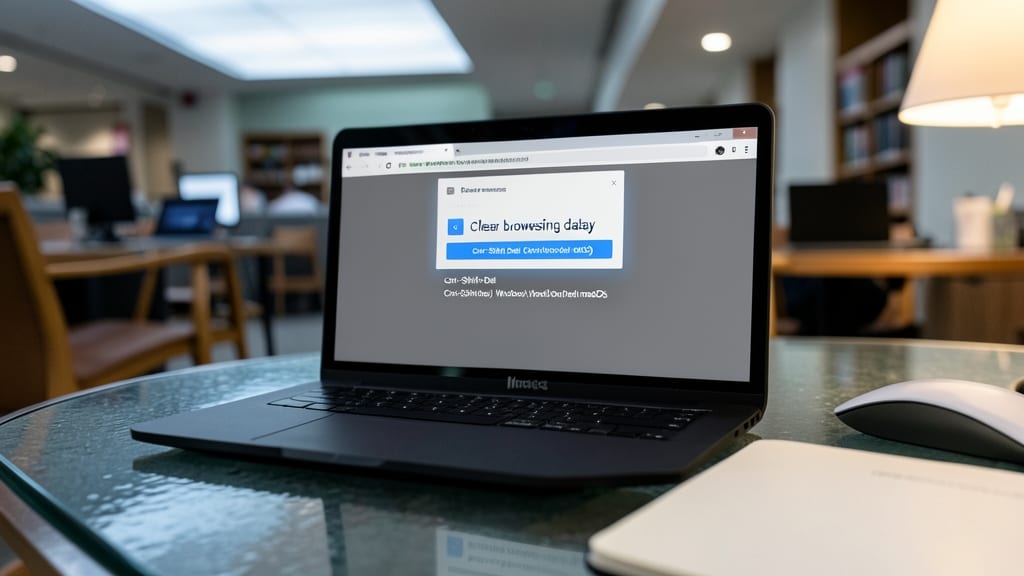
Public computers or shared devices? Microsoft Edge’s one-click privacy reset is your secret weapon—erasing cookies, cache, and history in seconds without sacrificing your personalized settings like bookmarks or extensions.
Access it via Ctrl+Shift+Del (Windows) or Cmd+Shift+Del (macOS) to open the Clear browsing data menu. Select "Choose what to clear" and tick "Cookies and other site data," "Cached images and files," and "Browsing history"—then click "Clear now." This zero-config reset ensures no lingering data slows down your next session while keeping your workflow intact.
Perfect for libraries, coworking spaces, or family devices, this feature gives you peace of mind—no manual deletions or privacy risks. ✨
Enable Dark Mode for Reduced Eye Strain
Late-night work sessions or sensitive eyes? Microsoft Edge’s Dark Mode is your secret weapon—cutting 30% of harmful blue light while keeping text crisp on both OLED and LCD screens. The deep navy interface isn’t just stylish; it’s scientifically designed to reduce eye fatigue during extended use.
Enable it in Settings > Appearance (Windows) or Edge > Settings > Appearance (macOS), where you’ll also find auto-dark theme options tied to your system’s schedule. For extra comfort, pair it with Immersive Reader (from a previous tip) to minimize glare on dark backgrounds. The result? Longer sessions without the strain.
Night owls, developers working through deadlines, and users with light sensitivity will notice the difference immediately. Your eyes—and productivity—will thank you. ✨