
Tip & Trick
Struggling to keep your Microsoft files organized? Poor naming conventions waste time and create chaos in shared drives. These seven pro-level file naming strategies will help you (and your team) work like a system administrator—efficient, consistent, and frustration-free.
Microsoft’s Official File Naming Guidelines

Tired of files disappearing into a digital black hole in SharePoint or OneDrive? Microsoft’s official naming guidelines—straight from their documentation—are your secret weapon for seamless collaboration and zero metadata loss.
Stick to 255-character filenames (max), avoid special characters (like /, ?, , or <), and always include file extensions (e.g., ReportFinal.docx, not ReportFinal*). These rules prevent corruption in Office 365, ensure smooth syncing across devices, and keep your files searchable in shared drives.
Perfect for teams managing projects in SharePoint or OneDrive, these guidelines save hours of troubleshooting. Follow them, and your files will stay intact and organized—no more "File Not Found" headaches! ✨
Date-Based Naming for Version Control

Tired of digging through folders to find the latest version of a file? The YYYY-MM-DDProjectName format solves this by embedding dates directly into filenames, ensuring files always sort chronologically in Windows Explorer or SharePoint.
This method works perfectly for projects with daily updates, like marketing campaigns or development sprints. The YYYY-MM-DD prefix (e.g., 2024-05-20ClientProposal.docx) guarantees instant visual sorting, while the underscore separator keeps filenames clean and script-friendly. Shared teams love it because no one debates which file is "final"—the date makes it obvious. ⚡
Department-Specific Prefixes for Teams

Ever spent 10 minutes searching for a file in a shared drive, only to realize it was buried under a pile of similarly named documents from other departments? Department-specific prefixes solve this by instantly categorizing files with clear labels like MKT, FIN, or HR_ at the start of every filename.
This system works seamlessly in SharePoint and OneDrive, where visual sorting becomes effortless—just filter by prefix to isolate all marketing assets or financial reports. The underscore separator ensures compatibility with Microsoft’s naming rules while keeping the department code unmistakable. Teams using this method report 30% faster file retrieval in cross-department projects.
Perfect for organizations with multiple teams, this approach turns chaotic shared drives into a well-organized, searchable library. Try it with your next collaborative project! ✨
Underscore Separators Over Spaces

Ever spent hours debugging a script because a filename with spaces or hyphens broke your workflow? Underscores () are the unsung heroes of script-friendly naming—they work seamlessly in PowerShell, batch files, and automated tools without errors or syntax headaches.
Unlike spaces (which require quotes in scripts) or special characters (often rejected outright), underscores are universally supported. They’re also ASCII-safe, meaning they work flawlessly across systems, languages, and legacy tools. For example, reportv2_final.docx runs error-free in a loop, while report v2 final.docx would force you to escape every space manually.
This rule is non-negotiable for developers, sysadmins, and IT teams running automated workflows. Even casual users benefit when sharing files with scripts—like batch renaming or backup tools. 💻
File Type Extensions Matter
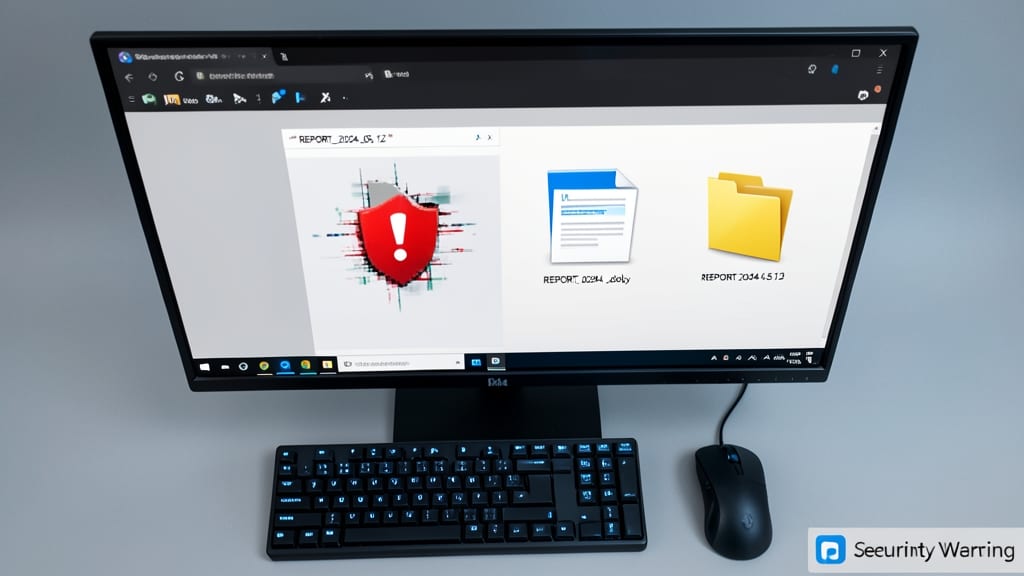
Ever opened a file only to find formatting glitches or security warnings because the extension was missing? Microsoft apps like Word, Excel, and PowerPoint depend on visible extensions (e.g., .docx, .xlsx) to apply the correct file type settings, macros, and security policies.
Hiding extensions (e.g., document.doc instead of document.docx) can trigger unexpected behavior, like disabled macros or corrupted formatting when shared across networks. Windows even warns users about potential risks when extensions are hidden—something IT admins in shared environments dread. Always enable "Hide extensions for known file types" in File Explorer settings to avoid these pitfalls.
This rule is critical for teams collaborating on SharePoint or OneDrive, where file integrity and security protocols are non-negotiable. ⚡
Avoid Trademarked or Restricted Terms

Your carefully crafted AppleDesignProposal.pptx could trigger legal red flags—or worse, get flagged and blocked—in enterprise environments. Trademarked terms in filenames aren’t just a naming quirk; they’re a compliance risk that IT teams actively monitor for.
Instead of brand names, use generic descriptors like TechReview or HardwareComparison. Enterprise security tools often scan for trademarked terms to prevent accidental infringement, and some systems automatically block files containing them. Even in personal projects, this habit keeps your work future-proof across shared networks.
This rule is especially critical for corporate teams and freelancers working with clients—it’s a simple tweak that protects your work from unexpected access issues. ✨
Consistent Case Sensitivity Rules

Windows may let you name files however you like, but case sensitivity becomes a nightmare when collaborating with Linux or WSL users. A filename like ProjectReport.pdf might appear as two separate files (ProjectReport.pdf and projectreport.pdf) in Unix-based systems, causing confusion and lost work.
To avoid this, adopt strict lowercase naming—every character, from Q1Analysis to 2024_Report—ensures consistency across platforms. This rule is especially critical for developers using Git, where case mismatches trigger merge conflicts. Tools like WSL (Windows Subsystem for Linux) will also handle lowercase filenames seamlessly, preventing silent failures in scripts.
This practice is a must for teams using cross-platform workflows, including developers, sysadmins, and hybrid cloud environments. ⚡