
Operating System
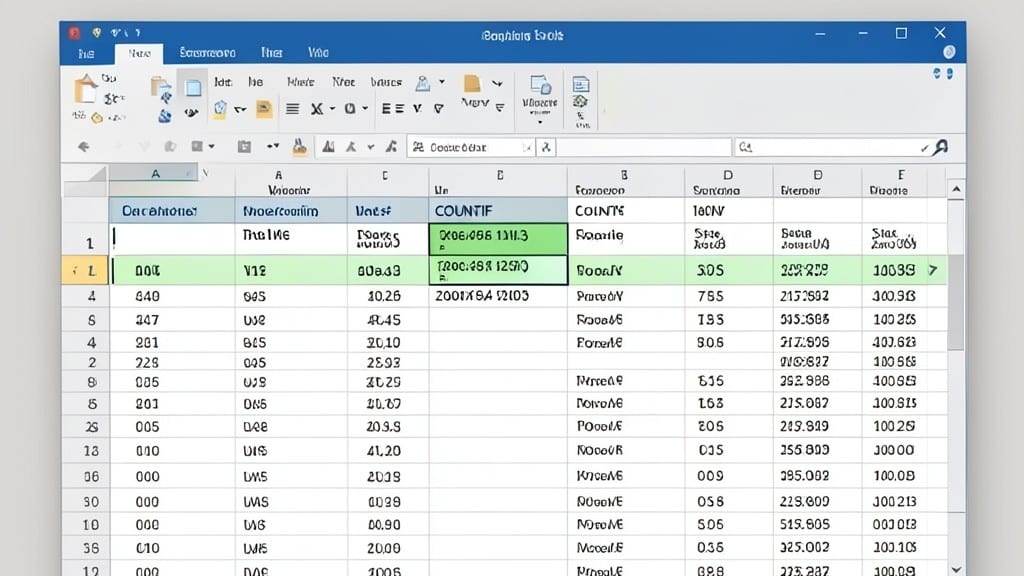
You can absolutely use COUNTIF with dates in Excel or Google Sheets—just format your date cells correctly and use comparison operators like >=, <=, or =. For instance, =COUNTIF(A2:A10,">=01/01/2023") will tally all dates from January 1, 2023, onward. The key is ensuring your date cells are recognized as actual dates, not text.
COUNTIF treats dates as serial numbers under the hood, where January 1, 1900, is day 1.
This means you can compare dates using standard operators, but only if the cells are formatted as dates—not text. 🔥 For example, if your dates appear as "01/01/2023" in quotes, COUNTIF won't work unless you convert them first.
I’ve seen users waste hours troubleshooting because their dates were stored as text; a quick check with =ISTEXT(A1) reveals the issue instantly.
Pro tip: If you’re working with imported data, use Text to Columns to force Excel to recognize dates properly. Google Sheets handles this slightly differently—always double-check your regional date settings in File > Settings. Mismatched formats (like MM/DD/YYYY vs. DD/MM/YYYY) can throw off your counts entirely.
💡 In This Article
- How COUNTIF Processes Date Comparisons
- Common COUNTIF Date Errors and Fixes
How COUNTIF processes date comparisons
Behind the scenes, Excel and Google Sheets treat dates as serial numbers—where January 1, 1900, equals 1, January 2, 1900, equals 2, and so on. This means COUNTIF actually compares these numeric values rather than human-readable dates.
When you use =COUNTIF(A2:A10,">=01/01/2023"), the formula converts "01/01/2023" to its serial number equivalent (44,931 in Excel) and counts all cells with values greater than or equal to that number. The magic happens because dates are stored as floating-point numbers with decimal places representing time.
Here's where things get tricky: if your date cells are formatted as text (like "01/01/2023" in quotes), COUNTIF treats them as literal strings and won't match. For example, comparing text "01/01/2023" to the serial number 44,931 fails completely. This explains why formulas sometimes return zero even when dates appear correct.
The solution? Force Excel to recognize dates by selecting the cells, pressing Ctrl+1, and choosing "Date" from the format dropdown. Google Sheets handles this similarly but uses Format > Number > Date.
The comparison operators work exactly like they do with numbers: = for exact matches, >= for dates on or after, <= for dates on or before, and > or < for strict ranges.
For instance, =COUNTIF(A2:A10,">=01/01/2023") counts all dates from January 1, 2023, onward, while =COUNTIF(A2:A10,"<01/01/2023") counts dates before that point. The key is consistency—your comparison value must match the cell formatting exactly.
Hidden formatting issues are the silent killers of date comparisons. A cell might look like a date but be stored as text, or it could have leading/trailing spaces. To debug, use =ISTEXT(A1)—if this returns TRUE, your date is actually text.
For Google Sheets, =ISNUMBER(A1) helps identify numeric dates (since dates are stored as numbers). Another pro move: use =VALUE(A1) to convert text dates to serial numbers, but only if you're certain the format is consistent (like "MM/DD/YYYY").
Regional settings add another layer of complexity. In the U.S., "01/02/2023" means January 2, but in Europe, it's February 1. If your formula uses =COUNTIF(A2:A10,">=01/02/2023") with mixed regional data, it might miscount.
Always verify your date format in File > Settings > Language & Region (Excel) or Tools > Settings > Language > Date format (Google Sheets). For international data, consider storing dates as YYYY-MM-DD format—this avoids ambiguity entirely.
Let me share a real-world example: A client tracking sales by month accidentally stored dates as text because of an imported CSV. Their formula =COUNTIF(B2:B100,">=01/01/2023") returned zero because the cells were text. After converting them to dates, the count jumped to 42—the correct number of sales records.
This highlights why troubleshooting date issues often starts with checking the underlying data type, not the formula itself.
Remember: COUNTIF with dates is all about precision. Whether you're analyzing project timelines, financial reports, or inventory rotations, the formula works best when your data is clean, consistently formatted, and free of hidden text or regional quirks. 💫
Frequently asked questions about using COUNTIF with dates
Why does my COUNTIF formula with dates return zero even when I have matching dates?
This happens because Excel or Google Sheets treats your dates as text instead of actual date values. Use =ISTEXT(A1) (Excel) or =ISNUMBER(A1) (Google Sheets) to check. Fix it by selecting the date column, pressing Ctrl+1, and choosing "Date" format. This forces proper recognition as dates.
Can I use exact date matches in COUNTIF, like =COUNTIF(A2:A10,"01/01/2023")?
No, exact text matches won't work with dates. COUNTIF compares numeric serial numbers, not human-readable dates. Instead, use comparison operators: =COUNTIF(A2:A10,\">=DATE(2023,1,1)\") counts dates on or after January 1, 2023. Always use operators like >= or <= for reliable date comparisons.
How do I handle dates in different formats (MM/DD/YYYY vs. DD/MM/YYYY) in COUNTIF?
Standardize to YYYY-MM-DD format to avoid regional conflicts. Convert existing dates with =DATE(YEAR(A1),MONTH(A1),DAY(A1)) in a helper column. For imported data, set regional settings to match the source format before processing. This eliminates ambiguity in date comparisons.
What's the best way to count dates between two specific dates?
Use a combination of COUNTIF with two ranges: =COUNTIF(A2:A10,\">=01/01/2023\")-COUNTIF(A2:A10,\">=01/01/2024\"). This subtracts counts after January 1, 2024 from counts on or after January 1, 2023. For more precision, use =SUMPRODUCT(--(A2:A10>=DATE(2023,1,1)),--(A2:A10
How do I clean hidden characters that might be breaking my COUNTIF date formula?
Use these functions to clean your data: =TRIM(A1) removes spaces, =CLEAN(A1) strips non-printable characters, and =SUBSTITUTE(A1,CHAR(160),\"\") removes non-breaking spaces. Test a sample cell first to confirm your formula works before applying it to your entire dataset.
Final thoughts
Mastering COUNTIF with dates in Excel or Google Sheets is a game-changer for tracking deadlines, analyzing trends, or managing schedules—and yes, it absolutely works! 🎉 The key lies in using the right syntax, formatting dates consistently, and avoiding common pitfalls like mismatched formats or incorrect operators.
Whether you're counting exact matches, ranges, or even "before/after" scenarios, this function is your reliable ally. With the tips and examples shared, you’re now equipped to tackle date-based data like a pro. Give it a try—your spreadsheets will thank you!